Camtasia Screen Recording – Video Editing with Screen Capture
Camtasia, developed by TechSmith, stands apart from general-purpose video editors by focusing specifically on
the intersection of screen recording and video editing — a combination designed for creating tutorials,
training videos, software demonstrations, educational content, and any video production that involves
showing and explaining what happens on a computer screen. While general-purpose video editors can import
screen recordings captured by separate tools, Camtasia integrates the recording and editing workflows into a
single application where screen capture, webcam recording, narration, annotation, and editing form a unified
content creation pipeline optimized for instructional and demonstration content.
This specialized focus makes Camtasia the dominant tool choice for corporate training departments,
educational content creators, software documentation teams, customer support organizations that create
visual guides, and individual creators producing how-to and tutorial content. The software does not attempt
to compete with professional video editors for broadcast, film, or general creative production — instead, it
excels at the specific content category where screen recording, clear annotation, and instructional editing
converge. Understanding Camtasia requires evaluating it through this specialized lens rather than comparing
it against general-purpose editors on criteria that fall outside its intended use case.
Screen Recording Engine
Camtasia’s screen recording captures full-screen activity, selected application windows, or custom-defined
screen regions with simultaneous webcam overlay recording, system audio capture, and microphone narration.
The recording interface provides clear controls for starting, pausing, and stopping recordings with keyboard
shortcuts that can be triggered without moving the mouse away from the content being demonstrated. Multiple
audio sources can be recorded simultaneously — system audio for capturing application sounds and microphone
input for narration — with each source captured as separate tracks that can be independently edited after
recording.
The cursor recording captures mouse movements, clicks, and scrolling with optional visual enhancements that
make cursor activity more visible to viewers. Click effects can highlight left clicks, right clicks, and
click-and-drag operations with visual indicators including ripple effects, spotlight circles, and enlarged
cursor rendering. Keyboard shortcut display can show on-screen representations of keyboard shortcuts as they
are pressed during recording, providing viewers with the specific key combinations used during demonstrated
workflows. These cursor and keyboard enhancments address the common problem in screen recording tutorials
where viewers cannot easily track the presenter’s mouse movements or identify which keyboard shortcuts are
being used.
Annotation and Callout Tools
Camtasia’s annotation tools are specifically designed for instructional content and provide more focused
annotation capabilities than the general-purpose text and graphics tools in traditional video editors.
Callout shapes include arrows, text boxes, highlighted regions, numbered steps, and keyboard shortcut
displays that communicating instructional information clearly without requiring artistic design skills or
complex compositing techniques. Each annotation type is designed to solve a specific communication need in
tutorial content — drawing attention to specific interface elements, labeling steps in a process,
highlighting important on-screen information, and providing context that supplements the narration.

The zoom and pan animation tools enable creating smooth animated zoom-ins to specific areas of the screen,
addressing the common challenge in screen recording tutorials where full-screen captures show too much
information and small interface elements are difficult to see at video delivery resolution. Smart Focus
automatically suggests zoom and pan animations based on detected cursor activity and click locations,
providing a starting point for zoom animations that can be refined manually. The blur and highlight tools
enable obscuring sensitive information — email addresses, account numbers, personal data — while drawing
attention to the specific elements being discussed.
Interactive elements including quizzes, clickable buttons, and hotspots can be embedded in video content for
interactive learning scenarios when distributed through TechSmith’s hosting platform or SCORM-compatible
learning management systems. These interactive capabilities bridge the gap between passive video content and
interactive e-learning modules, enabling simple interactivity without requiring dedicated e-learning
authoring tools for straightforward quiz and knowledge-check scenarios.
Video Editing for Tutorials
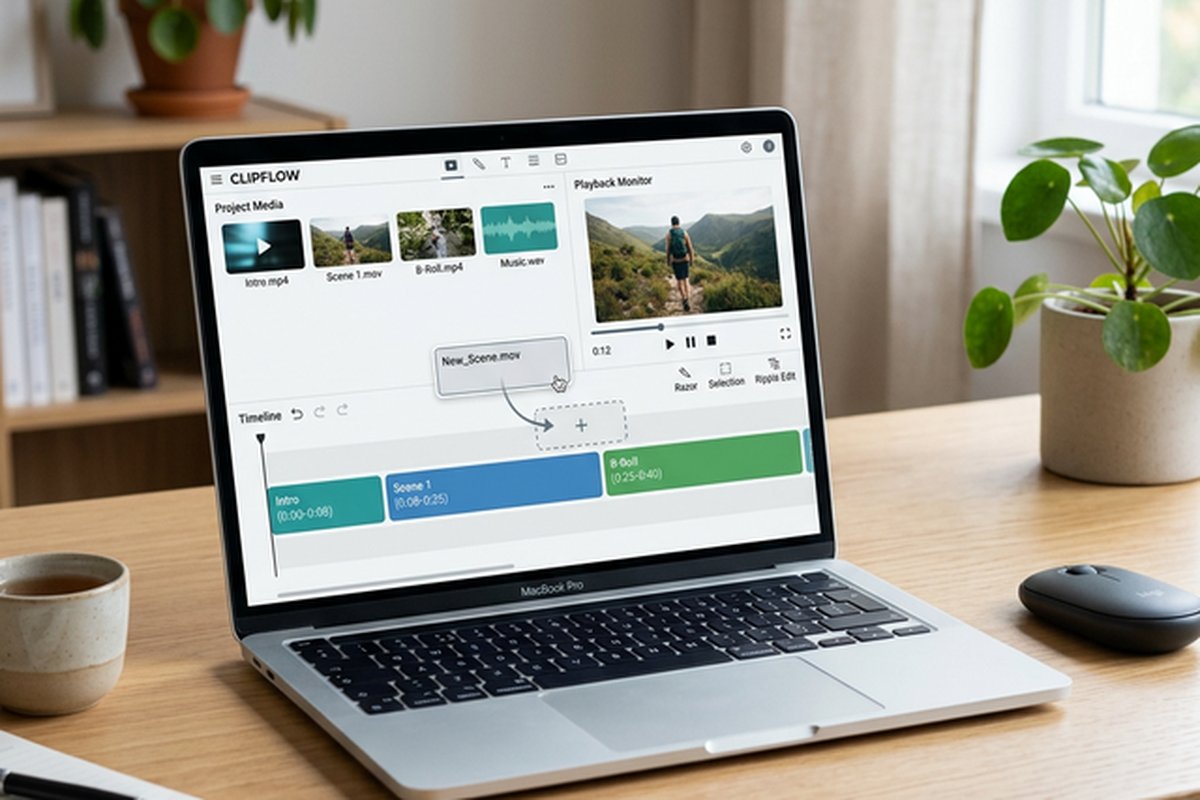
The editing timeline provides standard video editing operations including cut, trim, split, and arrange, with
enough tracks for layering webcam footage over screen recordings, adding title slides, and incorporating
supporting media. While the editing capabilities are intentionally less complex than professional video
editors, they cover the editing needs of tutorial and training content production thoroughly. Clip speed
adjustment enables accelerating or decelerating portions of recordings — speeding through repetitive setup
steps and slowing down complex operations that benefit from deliberate pacing.
Transitions between clips include standard cross-dissolves and cuts alongside tutorial-specific transitions
that maintain visual continuity during screen recording edits. The built-in library of intro and outro
slides, lower-third templates, and motion graphics provides professional-looking production elements without
requiring motion graphics design skills or external template creation. Audio editing tools include noise
removal for cleaning up microphone recordings, volume leveling for consistent audio across clips, and audio
effects that improve voice clarity for narration tracks.
Templates and Brand Consistency
Camtasia enables creating and sharing templates that standardize the visual appearance and structure of
tutorial content across teams and content libraries. Templates can define intro sequences, outro sequences,
lower-third styles, annotation appearances, color schemes, and organizational structures that ensure brand
consistency across all content produced within an organization. This template capability is particularly
valuable for corporate training departments and educational institutions that produce ongoing content
libraries where visual consistency supports professional presentation and brand recognition.
The theme system enables defining organizational color palettes, font selections, and logo placements that
are automatically applied across new projects, reducing per-project setup time and ensuring brand compliance
without manual checking. Shared asset libraries enable distributing standardized templates, intros, outros,
and brand elements across team members using Camtasia, centralizing brand asset management for distributed
content creation teams.
Asset Library and Content Resources
Camtasia includes a built-in library of royalty-free music tracks, sound effects, motion graphics, icons,
and animated lower-third templates that provide professional production elements without requiring external
asset sourcing. The music library includes tracks in various styles and durations suitable for tutorial
intros, background music during demonstrations, and promotional segments. Sound effects cover common
tutorial audio needs including click sounds, notification tones, transition whooshes, and success indicators
that enhance the viewing experience when used thoughtfully. The icon library provides commonly needed
graphics including arrows, checkmarks, warning icons, and technology symbols that supplement tutorial
narration with visual indicators.
TechSmith Assets for Camtasia provides additional downloadable content packs that extend the built-in library
with specialized resources including themed graphics packages, additional music tracks, and motion
backgrounds. The integration with Snagit, TechSmith’s screenshot and image capture tool, enables a unified
workflow where screenshots captured in Snagit can be imported directly into Camtasia projects for
incorporating static reference images alongside video recordings. PowerPoint import enables converting
presentation slides directly into Camtasia projects, providing a path for transforming existing
presentations into narrated video content without re-creating slide content manually.
Deployment and Sharing Options
Camtasia provides multiple deployment paths for finished content including direct upload to YouTube, Vimeo,
and other video platforms; export to standard video files in various formats and quality levels; SCORM
package creation for learning management system deployment; and publishing to TechSmith’s Screencast hosting
platform. The SCORM export capability is particularly valuable for corporate training departments and
educational institutions that deliver content through LMS platforms including Moodle, Canvas, Blackboard,
and corporate learning systems, enabling Camtasia content to be tracked for completion, quiz scores, and
learner progress within existing training infrastructure.
The Screencast hosting service provides cloud-based video hosting with analytics for view counts, viewer
engagement, drop-off points, and interactive element completion rates. These analytics help content creators
understand which tutorial content is most viewed, where viewers lose interest, and how interactive elements
are performing, providing data-driven insights for improving future content. The hosting platform supports
password-protected and domain-restricted sharing for internal training content that should not be publicly
accessible.
Platform Support and System Requirements
Camtasia runs on both Windows and macOS, providing cross-platform compatibility for organizations with
mixed operating system environments. The Windows version generally receives new features first and has
historically been the more fully-featured version, though the macOS version has achieved approximate feature
parity in recent releases. Project files can be shared between Windows and macOS versions with some
adaptation, enabling cross-platform collaboration within teams using different operating systems.
Screen recording quality depends partially on system capabilities — the recorder must capture screen content
in real-time while the operating system and demonstrated applications are running, creating system resource
demands that can affect recording smoothness on less powerful hardware. Recording at the monitor’s native
resolution provides the best quality but requires more processing power and storage than recording at
reduced resolutions. SSD storage is recommended for recording to prevent dropped frames during extended
recording sessions. Audio recording quality depends on the microphone hardware used, with USB condenser
microphones providing significantly better narration quality than built-in laptop microphones for
professional tutorial production.
Practical Use Cases and Workflows
Corporate training departments represent Camtasia’s largest user category, producing software training
videos, onboarding materials, process documentation, compliance training, and internal communication
content. The standardized template and brand consistency features address the production scale requirements
of departments creating hundreds of training videos across multiple software applications and business
processes. Integration with learning management systems enables tracking employee training completion and
knowledge assessment through embedded quizzes.
Software companies use Camtasia for customer education content including product tutorials, feature
demonstrations, troubleshooting guides, and release notes videos that supplement written documentation
with visual walkthroughs. Educational institutions create lecture recordings, lab demonstrations, course
introductions, and supplementary learning materials. Individual content creators producing YouTube
tutorials,
online courses, and how-to content benefit from the integrated recording-to-editing workflow that
streamlines
the production process for recurring content creation schedules.
Accessibility and Compliance Features
Camtasia addresses content accessibility requirements through built-in captioning tools that support
both manual caption creation and speech-to-text automated captioning for generating subtitle tracks.
The caption files can be exported in standard formats including SRT and VTT for upload to video
platforms that support closed captioning. For organizations subject to accessibility regulations
including Section 508 compliance, ADA requirements, or WCAG guidelines, the captioning and
transcript generation capabilities help meet the requirement that video content be accessible to
hearing-impaired viewers. The annotation tools — callouts, highlights, and text overlays — also
serve accessibility by providing visual alternatives that supplement audio narration for viewers
who may benefit from redundant visual cues alongside spoken instruction.
Strengths and Honest Limitations
Camtasia provides the most integrated and specialized screen recording and tutorial editing workflow
available, with annotation, zoom, and interactive tools specifically designed for instructional content
creation. The unified recording-to-editing workflow eliminates the friction of using separate applications
for capture and editing. The template and brand consistency tools support organizational content production
at scale with minimal per-project setup overhead. The built-in asset library provides professional
production
elements immediately available without external sourcing. TechSmith’s longevity and the product’s maturity
provide confidence in continued development and support. The SCORM export capability uniquely positions
Camtasia for corporate training and educational content delivery through learning management systems.
For comparison with general-purpose editing alternatives, our Filmora
review covers a beginner-friendly general editor.
Limitations include pricing that represents a significant investment for individual users compared to free
alternatives that can also import screen recordings, editing capabilities that are intentionally limited
compared to general-purpose video editors for projects beyond tutorial content, output quality and format
options that are adequate but not optimized for high-end production delivery scenarios, and system resource
requirements that can impact recording quality on less powerful hardware when recording demanding
applications simultaneously with the operating system. The subscription model for TechSmith’s hosting
platform adds ongoing cost for users who need cloud-based hosting and analytics. For users who need
professional-grade editing alongside screen recording capability, our DaVinci
Resolve review covers a free professional editor that can import screen recordings, and our free video
editing comparison provides broader context for evaluating editing options across different use
cases and budget requirements.
Features and pricing referenced in this article are based on information available at the time of writing
and are subject to change. Please verify current details on the official TechSmith website.