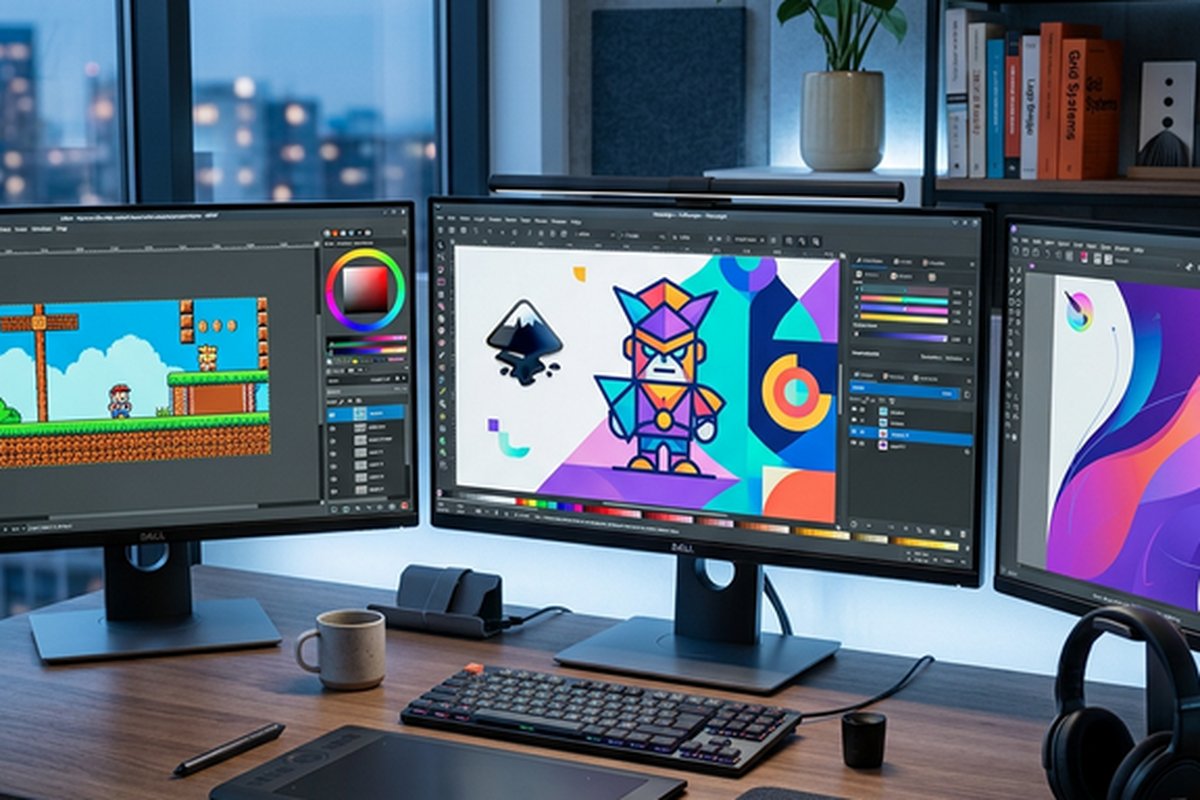
Free Design Software Options – Budget-Friendly Creative Tools
Professional design software has traditionally required significant financial investment — annual
subscription fees for Adobe Creative Cloud, one-time purchase costs for alternatives like Affinity’s suite,
or per-seat licensing for team design platforms. For freelancers building their careers, students developing
their creative skills, nonprofits operating on restricted technology budgets, small business owners who need
occasional design work but cannot justify dedicated design software subscriptions, and hobbyists pursuing
creative interests without professional income to offset tool costs, the cumulative expense of professional
creative software represents a genuine barrier to productive creative work. Fortunately, the current
landscape of free design tools has matured to a point where genuinely capable alternatives exist across
every major design discipline — from photo editing and vector illustration to interface design and
template-based graphic creation — with quality levels that would have been unimaginable a decade ago.
This article surveys the strongest free design software options currently available, organized by primary use
case and design discipline, with honest assessment of what each tool does well, where its limitations lie,
and what type of user will find each option most genuinely useful. The goal is not to suggest that free
tools are universally superior to paid alternatives — they are not, and pretending otherwise would be
dishonest — but rather to demonstrate that the free tier of the design tool landscape now offers enough
genuine capability that financial constraints need not prevent anyone from producing professional-quality
design work across a wide range of creative disciplines.
Template-Based Graphic Design — Canva Free
For the largest category of design needs — creating social media graphics, presentations, marketing
materials, documents, and visual content using professional templates as starting points — Canva’s free tier
provides remarkable value that exceeds what most users expect from a no-cost design tool. The free version
includes access to over two hundred and fifty thousand templates across hundreds of format categories, a
substantial library of free stock photos, illustrations, and graphic elements, five gigabytes of cloud
storage for saved designs and uploaded assets, and the complete design editor with all core editing
capabilities intact.
The free tier limitations are specific and well-defined: premium templates marked with crown icons are
unavailable, the stock content library is smaller than what Pro subscribers access, some features like
Background Remover, Magic Resize, and Brand Kit are reserved for paid plans, and cloud storage is limited to
five gigabytes rather than the one terabyte that Pro provides. For individual users, students, and small
organizations with moderate design volumes, these limitations are unlikely to prevent productive use for the
majority of common design tasks. The template quality and editor capabilities in the free tier are identical
to the paid version — the primary restriction is on the volume and variety of templates and stock assets
available.
Canva’s free tier is genuinely the strongest recommendation for non-designers who need to create
professional-looking graphics without learning design software. The template-driven approach, combined with
the intuitive drag-and-drop editor, makes it possible to produce publication-quality social media posts,
presentation decks, flyers, and documents within minutes of first visiting the platform. For a more detailed
examination of the full platform, our comprehensive Canva
review covers both free and paid capabilities in depth.
Professional Photo Editing — Photopea and GIMP
For professional-grade photo editing at zero cost, two options stand above the rest: Photopea for
browser-based editing and GIMP for locally installed editing. Photopea provides a remarkably capable
Photoshop-compatible editing environment that runs entirely in the browser with support for PSD, AI, XD, and
Sketch file formats, comprehensive layer-based editing with blending modes and adjustment layers,
professional selection tools, filter library, and vector path editing. The Photoshop-compatible interface
means that anyone with Photoshop experience can be immediately productive in Photopea, and the browser-based
access eliminates installation requirements entirely. Our detailed Photopea
review provides comprehensive analysis of its capabilities and limitations.
GIMP, the GNU Image Manipulation Program, is the veteran open-source alternative to Photoshop that has been
available since 1996 and continues active development by a dedicated community of contributors. GIMP
provides comprehensive image editing capabilities including support for sophisticated layer management with
layer groups, layer masks, and blending modes, an extensive selection of painting and retouching tools with
configurable brush dynamics, path-based vector editing for creating scalable design elements, comprehensive
color management with ICC profile support for professional color accuracy, and a powerful scripting system
through Script-Fu and Python-Fu that enables custom automation and plugin development. GIMP supports all
major image formats including PSD files with reasonable layer structure preservation, making it capable of
participating in workflows where Photoshop is the primary authoring tool. The extensibility through plugins
and scripts has produced a vast ecosystem of community-contributed add-ons covering specialized tasks from
professional retouching techniques to batch processing automation and creative effect generation.
GIMP’s primary limitation compared to Photoshop is its non-standard interface, which uses different
terminology and different tool behavior conventions than Photoshop. This creates a meaningful learning
barrier for users transitioning from Photoshop, and makes GIMP’s learning curve steeper than Photopea’s
Photoshop-compatible approach. However, GIMP’s depth of capability, once mastered, matches or exceeds
Photoshop for many editing tasks — and the offline, locally installed nature of GIMP means it has no
dependency on internet connectivity, no browser memory limitations for large file processing, and full GPU
acceleration support for hardware-accelerated rendering with compatible graphics cards. For users willing to
invest the learning time, GIMP represents the most powerful completely free photo editing tool available,
with capabilities that genuinely rival commercial alternatives costing hundreds of dollars annually in
subscription fees.
The choice between Photopea and GIMP depends on your specific workflow priorities. Photopea excels in
accessibility — instant browser access, Photoshop-familiar interface, PSD compatibility — while GIMP excels
in raw capability depth — more advanced plugins, scriptable automation, offline operation, and the unlimited
customizability that open-source software provides to technically capable users.
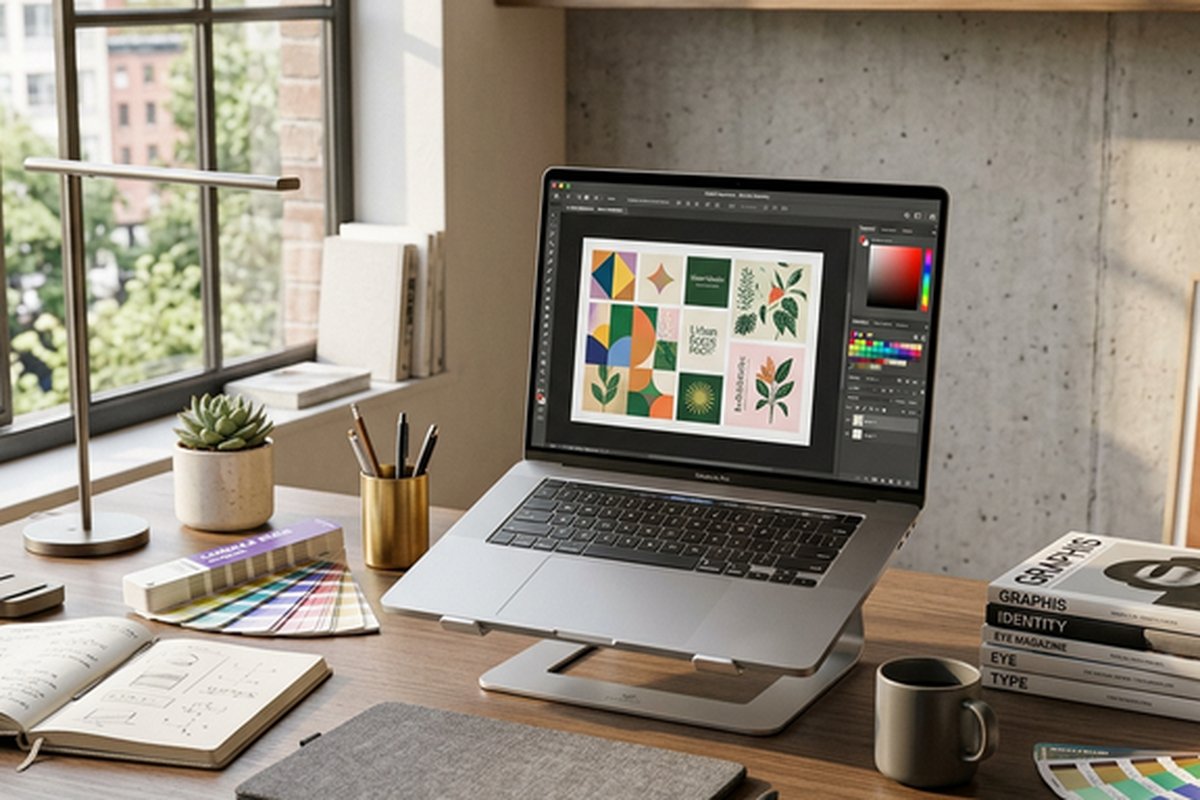
Vector Design — Inkscape and Browser-Based Options
Inkscape is the open-source community’s answer to Adobe Illustrator and remains the most capable free
locally-installed vector design application available. Supporting the SVG format natively with comprehensive
vector editing tools — Bezier path creation and editing, node manipulation with smooth, sharp, and symmetric
node types, Boolean pathfinder operations, pattern fills, gradient meshes, configurable stroke styles,
text-on-path capability, bitmap tracing for converting raster images to vector paths, and extensive filter
effects — Inkscape provides genuine professional vector editing capability without any cost. The application
runs on Windows, macOS, and Linux, ensuring cross-platform availability regardless of operating system
preference.
The Inkscape extension ecosystem adds specialized capabilities through community-developed plugins covering
tasks like advanced path effects, laser cutting preparation, vinyl cutting file generation, scientific
diagram creation, calligraphy tools, barcode generation, and technical drawing utilities. Many of these
extensions address niche professional requirements that even commercial vector applications do not cover
natively, making Inkscape particularly valuable in specialized fields like signage production, CNC routing
preparation, and scientific illustration where dedicated extensions transform the general-purpose vector
editor into a specialized production tool. The open-source nature of Inkscape means that technically capable
users can develop custom extensions tailored to their specific workflow requirements, providing a level of
customization flexibility that commercial closed-source applications simply cannot match.
Inkscape’s primary challenge is its interface, which uses conventions and organizational patterns that differ
significantly from Adobe Illustrator’s familiar layout. The learning curve for Illustrator-experienced
designers transitioning to Inkscape involves unlearning certain interface expectations and adapting to
Inkscape’s unique dialog-based property editing approach, which can feel less fluid than the inspector-panel
approach used by most modern design applications. Documentation has improved significantly in recent
versions, and the community provides extensive tutorials, video guides, and reference materials for new
users.
For browser-based vector editing without installation requirements, several options serve different skill
levels and use cases. Gravit Designer provides a comprehensive cross-platform vector editing experience,
while Vectr offers a simpler, more accessible entry point for users with basic vector design needs. Our
reviews of Gravit
Designer and Vectr provide
detailed evaluations of each platform’s capabilities and target audience.
UI/UX Design — Figma Free Tier
For interface design and user experience design work specifically, Figma’s free tier provides an
extraordinary value proposition that has effectively democratized access to professional-grade UI design
tools. The free tier includes full access to Figma’s design editor with all vector tools, auto-layout,
constraint-based responsive design, and styling capabilities. Individual users get up to three active Figma
files and three active FigJam files, with unlimited personal drafts and the ability to use any community
resources, plugins, and templates published by other designers.
The free tier limitations are team-focused rather than capability-focused — you get the same design tools
that paid subscribers use, but team collaboration features, shared team libraries, branching, and advanced
administrative controls are reserved for paid plans. For individual designers, freelancers working on
personal projects, students building portfolios, and anyone learning interface design, Figma’s free tier
provides professional-grade tools without any functional compromise in the core design capabilities. The
community ecosystem provides free access to design system libraries, component kits, wireframe templates,
icon sets, and educational resources that accelerate learning and productive output.
Specialized Free Tools
Beyond the major categories covered above, several specialized free tools deserve mention for specific
creative niches. Krita is an open-source digital painting application optimized for illustration and concept
art with professional brush engines, color management, HDR painting support, and animation capabilities. The
brush engine in Krita is widely regarded as superior to Photoshop’s for digital painting specifically, with
sophisticated brush dynamics, stabilizer features for smooth line work, and a resource management system
that handles massive brush libraries without performance degradation. Professional illustrators and concept
artists who primarily paint digitally rather than editing photographs may find Krita genuinely superior to
any commercial alternative for their specific workflow.
Blender is the open-source 3D creation suite that covers modeling, animation, rendering, compositing, and
motion tracking with capabilities that rival commercial 3D software costing thousands of dollars. Blender’s
evolution from a niche open-source project to a production-grade 3D platform used by major studios and
commercial projects represents one of the most remarkable success stories in open-source software
development. The application handles everything from simple 3D asset creation for web and mobile projects to
full-length animated film production, with the Cycles and Eevee rendering engines providing both physically
accurate and real-time rendering options.
Darktable is an open-source RAW photo development application that provides non-destructive RAW processing
with a comprehensive adjustment module library, comparable in concept to Adobe Lightroom’s development
capabilities. The application supports virtually all camera RAW formats, provides sophisticated masking and
selective adjustment capabilities, includes a comprehensive library management system for organizing large
photo collections, and runs on Windows, macOS, and Linux. For photographers who need Lightroom-equivalent
RAW development capabilities without the Creative Cloud subscription, Darktable represents the strongest
free alternative with genuine professional depth.
Adobe Express offers a free tier with limited template and asset access alongside AI-powered design creation
tools, providing an alternative to Canva’s free tier for users who prefer Adobe’s design aesthetic and AI
capabilities. Our Adobe Express vs
Canva comparison examines how these two template-based design platforms compare across features,
assets, and user experience. Pixlr provides another browser-based option with both simplified and advanced
photo editing interfaces, AI-powered background removal, and template-based design creation. Our Pixlr review
covers the platform’s dual-editor approach in detail.
Building a Complete Free Tool Stack
One of the most powerful approaches to free design software is assembling a complementary set of tools that
together provide comprehensive creative coverage without any cost. A practical free tool stack for a
freelance designer or small business might include Canva for quick template-based social media and marketing
graphics, Figma for interface design and collaborative team projects, Photopea for professional photo
editing and PSD file compatibility, Inkscape for detailed vector illustration and logo creation, and Krita
for digital illustration and concept art work.
This combination provides capabilities that genuinely approximate the breadth of Adobe Creative Cloud’s core
applications — Canva and Adobe Express territory for quick designs, Figma for the Sketch and XD territory of
interface design, Photopea and GIMP for Photoshop territory, and Inkscape for Illustrator territory — at
zero total cost. The learning investment required to become proficient across multiple free tools is
significant, but the financial savings are equally substantial, particularly for individuals and small
organizations where even modestly priced subscriptions represent meaningful budget impact.
The trade-off compared to an all-in subscription like Creative Cloud is workflow integration. Adobe’s
applications share a common design language, file format compatibility, and ecosystem services like Creative
Cloud Libraries that create smooth transitions between applications. A free tool stack requires more
deliberate file management, format conversion awareness, and workflow discipline to maintain productivity
across the boundaries between independent applications that were not designed to work together as a unified
suite.
When to Transition from Free to Paid
Free tools are most appropriate when your design work is occasional, when you are learning and developing
skills, when your budget genuinely cannot accommodate software costs, or when the specific capabilities you
need are fully covered by free options without meaningful compromise. The transition to paid tools typically
becomes justifiable when your design volume increases to a level where the time efficiency advantages of
premium features save more value than the subscription costs, when specific premium capabilities become
genuinely necessary for your work quality rather than merely desirable, when integration and ecosystem
cohesion with team workflows requires shared platform investment, or when client expectations and
professional requirements mandate specific tool proficiency.
Choosing the Right Free Tool
Selecting the right free design tool requires honest assessment of your actual needs rather than pursuing the
most capable option regardless of relevance to your work. If you primarily need to create social media
graphics, presentations, and marketing materials from templates, Canva’s free tier is the strongest starting
point. If you need Photoshop-level photo editing without installation or cost, Photopea provides the most
accessible option. If you need deep photo manipulation with maximum customizability and offline capability,
GIMP delivers unmatched depth at zero cost. If you need professional vector design for logos, illustrations,
and scalable graphics, Inkscape provides the most comprehensive free option. If you need collaborative
interface design tools, Figma’s free tier is the clear recommendation.
The free design tool landscape has genuinely reached a maturity level where financial constraints, while
potentially limiting access to specific premium features, convenience optimizations, and enterprise
collaboration capabilities, no longer prevent access to the core creative capabilities needed for
professional-quality design output across virtually every common design discipline. The tools exist, they
are capable, and the barrier to impressive creative work has shifted from software access to creative skill
development — a barrier that only practice, study, and persistent creative effort can overcome, regardless
of whether the tools in your hands were free or expensive.
Features and pricing referenced in this article are based on information available at the time of writing
and are subject to change. Please verify current details on each tool’s official website.