Google Drive Features – Cloud Storage and Workspace Integration
Google Drive has evolved from a simple cloud storage service into the central nervous system of Google’s
entire productivity ecosystem, connecting file storage with document creation, real-time collaboration,
communication tools, and third-party application integrations in ways that make it functionally inseparable
from the broader Google Workspace experience. Understanding Google Drive requires examining not just its
storage capabilities in isolation, but the interconnected web of productivity features that storage enables
when combined with Google’s suite of creation and collaboration tools.
Launched in 2012, Google Drive entered a cloud storage market where Dropbox had already established the
fundamental model of syncing files across devices through a dedicated folder structure. Rather than simply
replicating Dropbox’s file-sync approach, Google positioned Drive as the storage layer beneath its existing
productivity applications — Google Docs, Sheets, and Slides — creating a platform where file storage and
content creation were natively intertwined rather than treated as separate activities. This architectural
decision has defined Google Drive’s identity and competitive advantages throughout its development, and
continues to distinguish it from cloud storage services that treat storage and productivity as separate
concerns addressed by separate tools.
Storage Architecture and Organization
Google Drive provides 15 gigabytes of free storage shared across Google Drive, Gmail, and Google Photos for
every Google account holder. This shared storage pool means that large email attachments in Gmail and
original-quality photos stored in Google Photos consume the same storage quota as files uploaded directly to
Drive. Understanding this shared allocation is practically important because users who store significant
photo libraries or maintain large email archives may find their available Drive storage is less than the
full 15 gigabytes they initially expected.
Paid storage through Google One subscriptions expands capacity starting at 100 gigabytes and scaling through
200 gigabytes, 2 terabytes, and higher tiers. Google One subscriptions include additional benefits beyond
raw storage expansion, including the ability to share storage quota with up to five family members, access
to Google experts for support, and additional Google member benefits that vary by plan tier and region. The
pricing is competitive with other major cloud storage providers, particularly at the 2 terabyte tier where
the per-gigabyte cost becomes quite economical for users with substantial storage requirements.
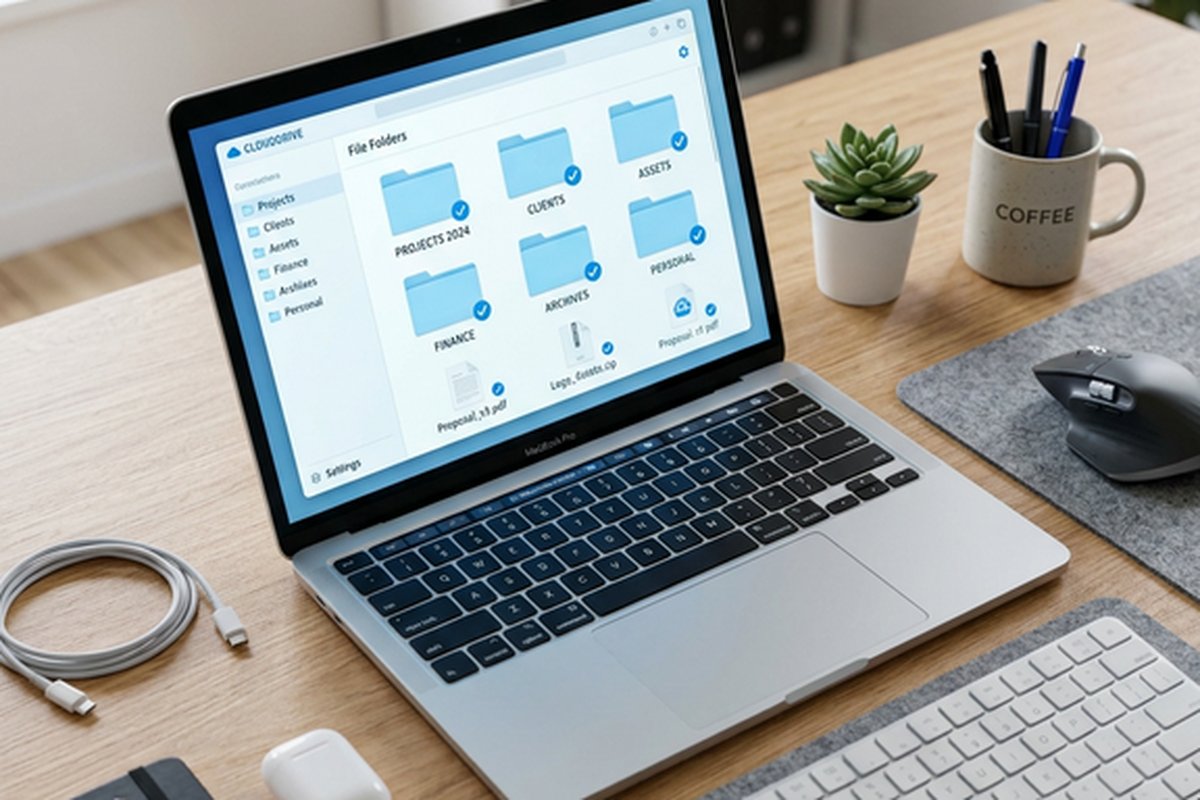
File organization follows a traditional folder hierarchy that most computer users find immediately familiar.
Folders can be nested to arbitrary depth, files can be organized by dragging and dropping between folders,
and a color-coding system allows visual differentiation between folders for quick identification of
frequently accessed project areas. The organizational model extends beyond simple folder structures to
include star marking for prioritizing important files, creating shortcuts to files and folders that can
appear in multiple locations without duplicating the actual file, and a workspace feature that allows
grouping related files from different folder locations into unified project views.
The search functionality within Google Drive leverages Google’s core competency in information retrieval to
provide remarkably powerful file discovery capabilities. Full-text search indexes the content of stored
documents, PDFs, and even text within images using optical character recognition, enabling searches that
find files based on their content rather than requiring users to remember exact file names or folder
locations. Advanced search filters allow narrowing results by file type, modification date, owner, sharing
status, and other metadata parameters. For organizations with thousands of stored files, the search
capability often proves more practical and faster than manual folder navigation for locating specific
documents.
Google Workspace Integration
The integration between Google Drive and Google’s productivity applications — Docs, Sheets, Slides, Forms,
Drawings, Sites, and newer additions like Google Vids — represents the platform’s most significant
competitive advantage and the primary reason many users choose Google Drive over potentially superior
pure-storage alternatives. Documents created in Google Workspace applications are stored in Google Drive
automatically and do not consume storage quota, which means users can create an unlimited number of Google
Docs, Sheets, and Slides without affecting their storage allocation. This unlimited creation capacity
removes a practical barrier that would otherwise constrain document creation and experimentation on
storage-limited plans.
The creation workflow is seamlessly bidirectional. Users can create new Google Docs, Sheets, or Slides
directly from within Drive’s interface, and documents created in those applications automatically appear in
Drive’s file listing. The boundary between storage and creation is effectively invisible — Drive functions
as both the filing cabinet and the desk where work happens. Double-clicking a Google Docs file in Drive
opens it directly in the Docs editor, changes save automatically and continuously, and version history
tracks every edit with the ability to review and restore previous document states at any point.
Google Sheets provides spreadsheet capabilities that handle the vast majority of business data analysis,
budgeting, tracking, and reporting tasks that most teams encounter. While Excel remains the more powerful
tool for advanced data analysis scenarios involving complex macros, massive datasets, or specialized
financial modeling, Google Sheets covers the practical needs of most business spreadsheet workflows while
adding the real-time collaboration, cloud accessibility, and automatic saving advantages that are native
to the Google Workspace environment.
Google Slides serves as the presentation creation tool within the ecosystem, providing sufficient
presentation design capability for business meetings, educational content, and internal communications.
The integration with Google Drive means that presentation assets — images, charts from Sheets, content
from Docs — can be inserted from Drive without downloading and re-uploading files, creating a connected
workflow between content creation tools that reduces friction in the content development process.
Collaboration and Sharing Capabilities
Real-time collaboration is Google Drive’s signature capability and remains one of the most genuinely
transformative features in modern productivity software. Multiple users can simultaneously edit the same
Google Doc, Sheet, or Slides presentation, with each person’s cursor visible to all other collaborators
and changes appearing in real-time as they are made. The collaboration experience has been refined over
more than a decade of continuous improvement and handles concurrent editing with remarkable reliability,
even with the dozens of simultaneous editors that large organizational documents sometimes attract.
Commenting and suggestion features enable structured feedback workflows where reviewers can leave comments
attached to specific text selections, suggest edits that the document owner can accept or reject with a
single click, and engage in threaded conversations about specific content decisions. These collaboration
tools transform document creation from a serial process — one person writes, sends for review, incorporates
feedback, sends again — into a parallel process where multiple contributors can work simultaneously with
visible coordination of their efforts.
File sharing controls provide granular permission management with three access levels: Viewer (can see but
not edit), Commenter (can view and leave comments but not edit content), and Editor (full editing
capability). Sharing can be configured for specific individuals by email address, for anyone within an
organization’s Google Workspace domain, or for anyone with the link for broader distribution. Advanced
sharing settings allow owners to prevent editors from changing sharing permissions, disable downloading,
printing, and copying for viewers, and set expiration dates for shared access that automatically revoke
permissions after a specified period.
Shared Drives, available in Google Workspace business plans, provide team-owned storage spaces where files
belong to the organization rather than individual users. This organizational ownership model ensures that
files remain accessible and organized when team members change roles, leave the organization, or transfer
between departments. Shared Drives solve the common problem of important business documents being trapped
in individual users’ personal Drive accounts, which creates continuity risks when those users are no longer
available to share access.
File Compatibility and Format Support
Google Drive supports uploading and storing any file type without format restrictions, functioning as a
general-purpose cloud storage system for all digital files regardless of format. The storage system handles
documents, images, videos, audio files, archives, executables, and any other file format that users need
to store, share, or access across devices. For supported file types, Drive provides preview capabilities
directly in the browser without requiring the associated application to be installed — PDFs, images, audio
files, video files, Microsoft Office documents, and many other common formats can be previewed directly
within Drive’s interface.
Microsoft Office file compatibility has improved substantially over the years, addressing what was
historically one of Google Drive’s most significant practical limitations. Users can now open, edit, and
save Microsoft Word, Excel, and PowerPoint files directly in Google’s editors without converting them to
Google’s native formats. The editing experience preserves most formatting, layout elements, and
functionality from the original Office files, though complex formatting, advanced macros, and highly
customized templates may experience some fidelity loss during the conversion process. For organizations
that work across both Google Workspace and Microsoft 365 environments, this interoperability has become
increasingly reliable and practically functional for the majority of common document editing scenarios.
The Google Drive desktop application provides file synchronization between cloud storage and local computer
file systems, creating a local folder that mirrors Drive’s cloud content. Files placed in the synced folder
are automatically uploaded to Drive, and files stored in Drive appear in the local file system for access
through standard desktop applications. The desktop client offers two synchronization modes: streaming mode
that shows all cloud files in the local file system but downloads content only when accessed, saving local
disk space; and mirroring mode that maintains complete local copies of all cloud files for offline access
at the cost of local storage space consumption.
Security and Administrative Controls
Google’s security infrastructure protects stored files through multiple layers of technical and procedural
safeguards. Data is encrypted both in transit using TLS encryption for network communication and at rest
using AES-256 encryption for stored data. Google manages encryption keys through its own key management
infrastructure, which provides robust security for the vast majority of use cases but means that Google
technically has the capability to access stored data if required by legal process or organizational
policy. For organizations requiring customer-managed encryption keys, Google Workspace Enterprise plans
offer client-side encryption where the organization controls encryption keys through an external key
management service, ensuring that Google cannot decrypt the data even with physical access to the storage
infrastructure.
Two-factor authentication adds an additional security layer to account access, requiring both password entry
and verification through a secondary method — typically a mobile device authentication prompt, an
authenticator app-generated code, or a physical security key. Google’s Advanced Protection Program provides
the highest level of account security available for users who face elevated security risks, using physical
security keys as the exclusive second-factor method and applying additional restrictions on third-party
application access to account data.
Google Workspace administrative controls provide organizational IT administrators with comprehensive tools
for managing Drive deployment across the organization. Administrators can configure sharing policies that
restrict external file sharing, set storage quotas for individual users or organizational units, audit
file access and sharing activity through detailed logs, and manage data loss prevention rules that prevent
sensitive content from being shared outside the organization. These administrative capabilities are
essential for organizations with regulatory compliance requirements, data governance policies, or security
standards that mandate specific controls over cloud-stored business data.
Mobile Access and Offline Capabilities
Google Drive mobile applications for iOS and Android provide full access to stored files, sharing controls,
and organizational features from smartphones and tablets. The mobile experience includes file browsing,
preview capabilities for supported formats, sharing management, camera-based document scanning that
converts photographed physical documents into searchable PDF files stored directly in Drive. The document
scanning feature uses optical character recognition to extract text from photographed documents, making
the scanned content searchable alongside other Drive files — a practically valuable capability for
digitizing receipts, business cards, printed documents, and handwritten notes.
Offline access capability allows marking specific files and folders for offline availability, downloading
their content to the local device for access without internet connectivity. Changes made to Google Docs,
Sheets, and Slides while offline are saved locally and automatically synchronized when the device
reconnects to the internet. The offline capability is configured through the Google Drive web interface
and requires the Google Docs Offline Chrome extension for browser-based offline access on desktop
computers. Mobile applications handle offline access through their native caching and synchronization
mechanisms.
Third-Party Application Integration
Google Drive’s integration with third-party applications through the Google Workspace Marketplace extends
its functionality beyond Google’s own tools into a broad ecosystem of specialized applications that
connect to Drive for storage, file access, and workflow integration. Hundreds of third-party applications
integrate with Drive, covering categories including document signing services, project management tools,
CRM systems, design applications, video conferencing platforms, and specialized industry tools. These
integrations allow Drive to function as the central file repository for workflows that span multiple
applications, with each connected tool reading from and writing to Drive as its storage backend.
The Google Apps Script platform provides programmatic automation capabilities that allow technically capable
users to create custom workflows, automate repetitive tasks, build custom functions for Google Sheets,
generate automated reports, and create integrations between Google Workspace applications. Apps Script
uses JavaScript syntax and provides built-in services for interacting with Google Drive, Docs, Sheets,
Gmail, Calendar, and other Google services, enabling automation scenarios ranging from simple email
notifications when specific files are modified to complex workflow orchestrations that process data across
multiple Google Workspace applications.
Strengths and Honest Limitations
Google Drive’s strengths are substantial and directly connected to its integration within the Google
ecosystem. The seamless connection between storage and creation through Google Workspace applications
provides a unified productivity experience that competing storage-first services cannot replicate. Real-time
collaboration capabilities are industry-leading in reliability, accessibility, and ease of use. The generous
15-gigabyte free tier provides meaningful storage capacity without payment. Search capabilities leverage
Google’s core technology expertise for genuinely powerful file discovery across massive document
collections. The cross-platform availability through web browsers, desktop clients, and mobile applications
ensures access from virtually any device.
Limitations are equally real and worth understanding clearly. The shared storage quota across Drive, Gmail,
and Photos often results in less available Drive storage than users initially expect. Privacy considerations
arise from Google’s business model which, in consumer accounts, involves analyzing content for advertising
targeting purposes — though Google Workspace business accounts are exempt from advertising-related data
analysis. Offline capabilities, while functional, are less seamless than services like Dropbox that provide
more transparent local file system integration. Advanced features like Shared Drives, enhanced security
controls, and client-side encryption require Google Workspace business subscriptions that represent
significant per-user monthly costs for larger organizations.
For users evaluating Google Drive alongside other cloud storage platforms, our Google Drive
vs Dropbox comparison provides direct feature-by-feature analysis, while our OneDrive
review examines the primary competitor that offers similarly deep integration with a different
productivity ecosystem.
Features and pricing referenced in this article are based on information available at the time of writing
and are subject to change. Please verify current details on the official Google Drive website.