iMovie Simple Editing – Apple Beginner Video Creation Tool
iMovie serves as Apple’s free, beginner-oriented video editing application available on Mac, iPhone, and
iPad, providing an accessible entry point into video editing for users with no prior editing experience. As
a pre-installed application on Apple devices, iMovie reaches an enormous user base of people who may not
have actively sought out video editing software but discover it available on their existing devices when a
need for basic video editing arises. This distribution model — free, pre-installed, and immediately
available — positions iMovie as the default starting point for video editing in the Apple ecosystem, much as
Paint served as the default starting point for image editing on Windows for decades.
iMovie’s design philosophy prioritizes simplicity and guided creation over comprehensive capability,
deliberately limiting options and complexity in exchange for an editing experience where new users can
create presentable videos within minutes of opening the application for the first time. This design
trade-off makes iMovie genuinely excellent for its intended purpose — basic video editing for personal,
educational, and simple professional content — while ensuring it is not an appropriate tool for production
requirements that exceed basic editing complexity. Understanding this intentional positioning is important
for evaluating iMovie fairly: it is not designed to compete with professional editors, and evaluating it on
professional criteria misrepresents its purpose and audience.
Mac Editing Experience
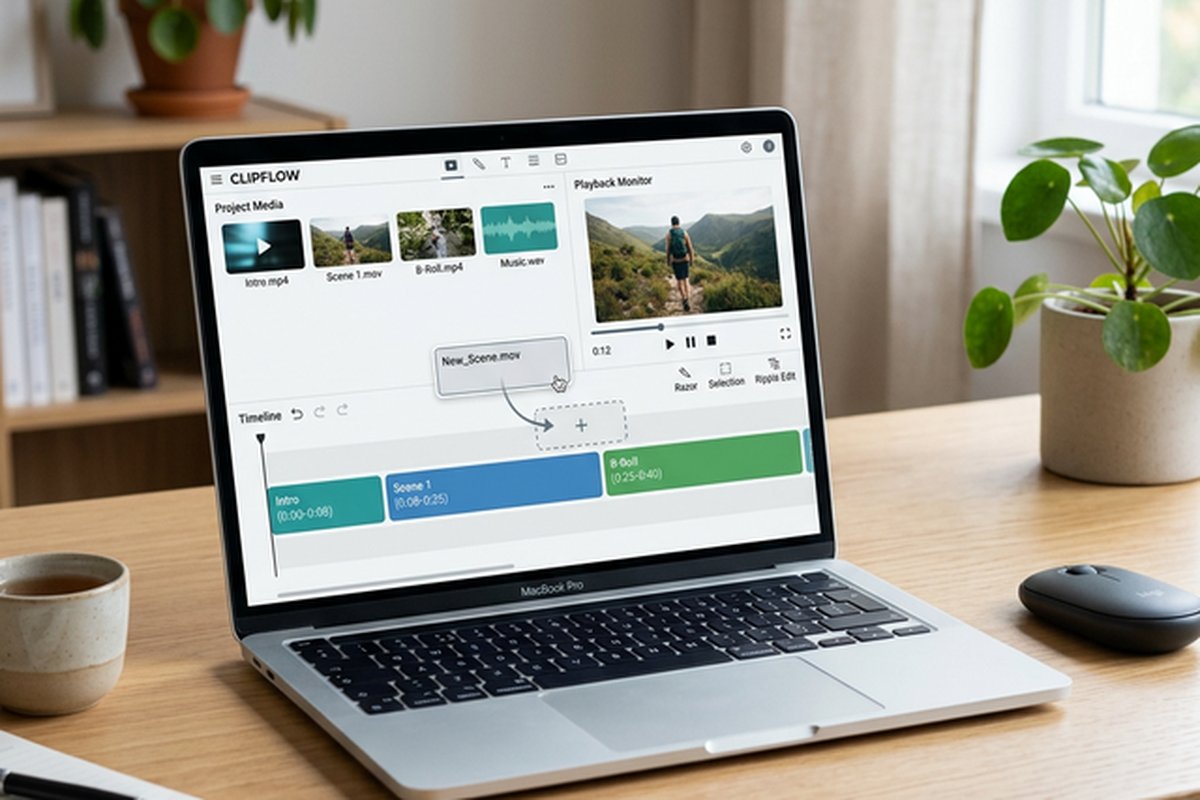
The Mac version of iMovie provides a streamlined timeline-based editing interface with a media library,
preview window, and timeline arranged in a clean layout that avoids the information density of professional
editing applications. The timeline supports drag-and-drop clip placement, visual trimming through clip edge
dragging, and simple splitting through playhead positioning. The limited number of tracks — two video tracks
and dedicated background music and sound effect tracks — constrains editing complexity to a level that
beginners can manage without becoming overwhelmed by the unlimited track arrangements possible in
professional editors.
The media management interface organizes imported footage, photos, and audio by date and event, providing a
photo-library-like browsing experience that is more familiar to casual users than the bin-and-folder
organizational model used by professional editors. The skimming feature enables quick preview of clips by
hovering the mouse cursor over thumbnails, providing rapid visual assessment of footage content without
clicking individual clips for separate preview. Favorites and reject marking enable basic footage rating
that helps organize large imports without the more complex metadata and keyword tagging systems provided by
professional editors.
Templates and Themes
Movie templates provide pre-designed editing structures including trailers, travel videos, and themed
presentations where users replace placeholder content with their own footage to create polished videos
following Apple’s professionally designed visual formats. The trailer templates are particularly
well-designed, providing Hollywood-style trailer structures complete with title cards, transition timing,
music cues, and shot suggestions that produce surprisingly polished results when populated with appropriate
footage. These templates demonstrate iMovie’s strength in guided creation — users who follow the template
structure produce results that exceed what they could likely achieve through unguided editing on any
platform.

Themes apply consistent visual styles across an entire project including title fonts, transition styles, and
lower-third designs, ensuring visual consistency without requiring manual application of individual
elements. The theme system addresses the common beginner challenge of creating visually cohesive videos by
making consistency automatic rather than requiring conscious design decisions for each title, transition,
and graphical element. Background music from Apple’s Soundtrack library is available for projects, with
automatic beat and duration matching that adjusts music to fit the project duration.
iOS and iPadOS Integration
iMovie on iPhone and iPad provides touch-optimized video editing that enables editing on the same devices
used to capture footage, eliminating the transfer step between capture device and editing computer. The
mobile version provides the core editing capabilities — trimming, splitting, title adding, filter applying,
and music including — adapted for touch interaction with gesture-based controls for timeline navigation and
clip manipulation. The editing capabilities are more limited than the Mac version but sufficient for basic
editing tasks and social media content creation directly from mobile devices.
AirDrop and iCloud enable transferring iMovie projects between iOS devices and Mac, supporting workflows
where initial editing occurs on iPhone immediately after filming and is refined on Mac for final production.
This cross-device workflow provides practical flexibility for creators who capture on mobile devices but
prefer the larger screen and more precise controls of Mac for final editing work. The integration with the
Apple Photos library provides direct access to all photos and videos stored on the device or synced through
iCloud Photos, simplifying the media import process.
Audio and Music Tools
Audio editing in iMovie provides basic volume adjustment, audio fade control, audio ducking that
automatically reduces music volume during dialogue, and sound effect insertion from the built-in library.
The simplicity of the audio tools reflects iMovie’s overall philosophy — providing the essential audio
management functions that basic video production requires without the complexity of multi-track mixing,
parametric equalization, and dynamics processing that professional editing platforms provide. Voice-over
recording enables recording narration directly within iMovie using the Mac’s built-in microphone or
connected external microphones.
The built-in music library provides royalty-free music tracks and sound effects that cover common production
needs including background music in various genres and moods, transition sound effects, ambient sounds, and
impact effects. The music tracks automatically adjust in duration to match the project length, providing
appropriate musical accompaniment without requiring manual music editing or tempo adjustment. For users who
need music beyond the built-in library, iMovie integrates with Apple Music and the local Music library for
accessing personal music collections, though copyright considerations apply when using commercial music in
publicly shared videos.
Effects and Visual Enhancement
iMovie includes a curated selection of video effects, filters, and visual enhancements designed to improve
footage quality and add creative polish without requiring technical understanding of video processing
concepts. The filter collection includes cinematic looks, vintage styles, black and white conversions,
and color temperature adjustments that can be applied with a single click and previewed in real-time
before committing the change. While the filter selection is intentionally limited compared to professional
editors, each included filter is well-designed and produces consistent, professional-looking results
across different footage types.
The Ken Burns effect automatically applies smooth pan-and-zoom animations to still photographs, transforming
static images into dynamic visual elements suitable for documentary-style storytelling, photo montages,
and educational presentations. The green screen keying tool enables basic background replacement from
footage shot against green or blue backgrounds, providing compositing capability for creators with
basic studio setups. Picture-in-picture and split-screen modes enable multi-image compositions for
reaction content, interviews, tutorials, and comparison presentations. Stabilization automatically
reduces camera shake from handheld footage, improving the visual quality of mobile-captured footage
without requiring manual adjustment of stabilization parameters.
Export and Sharing Options
iMovie provides streamlined export options focused on the most common delivery targets rather than the
comprehensive format and codec controls offered by professional editors. Direct sharing to YouTube,
Vimeo, and social media platforms is integrated into the export workflow with optimized encoding
settings for each platform. File export supports multiple resolution options up to 4K at suitable
quality levels for web delivery and personal archiving. The export process applies Apple’s optimized
encoding pipeline which produces good quality-to-file-size ratios for the supported output formats.
AirDrop export enables wireless transfer of completed videos to nearby Apple devices for immediate
sharing or further processing in other applications. The integration with the Apple Photos library
enables saving exported videos directly to the photo library where they sync across devices through
iCloud Photos. For users who need to hand off projects to more capable editing environments, iMovie
projects can be exported and imported into Final Cut Pro, preserving timeline structure, clips, and
basic settings while gaining access to Final Cut Pro’s full professional feature set.
Accessibility and Inclusive Design
iMovie inherits Apple’s commitment to accessibility, providing VoiceOver support for visually impaired
users, keyboard navigation alternatives for users who cannot use mouse or trackpad input, and
integration with Apple’s broader accessibility features including Switch Control and Voice Control.
The accessibility support makes iMovie one of the most accessible video editing applications
available, enabling video content creation for users with diverse abilities and input needs.
The simplified interface that defines iMovie’s design serves as an accessibility feature in itself —
by reducing the number of options, controls, and parameters compared to professional editors, iMovie
makes video editing approachable for users who would find the complexity of professional applications
overwhelming or unusable. For educational settings where students with varying abilities participate
in video creation projects, iMovie’s combination of functional capability and genuine accessibility
support makes it a practical choice that serves the broadest range of students.
Educational and Creative Applications
iMovie has found extensive adoption in educational settings from elementary schools through universities,
where its pre-installation on school-provided Apple devices, free cost, and accessible interface make
it the default video editing tool for student projects, multimedia assignments, and creative
coursework. Teachers and professors assign video projects knowing that students have immediate access
to iMovie on their Apple devices without requiring software installation, licensing, or technical
setup. The trailer templates are particularly popular for educational use, enabling students to
create structured, professional-looking video presentations that demonstrate understanding of
narrative structure and visual storytelling concepts.
Personal and family video creation represents iMovie’s original target use case, and the application
continues to serve this audience effectively. The combination of simple editing tools, automated
music fitting, and thematic templates enables creating polished vacation videos, family event
recordings, birthday compilations, and holiday memory videos that exceed the quality of unedited
footage sharing while requiring minimal editing experience or time investment. The cross-device
editing capability between iPhone and Mac supports the practical workflow where important moments
are captured on iPhone and refined into shareable videos on Mac.
Integration with Apple Ecosystem
iMovie benefits from deep integration with Apple’s broader hardware and software ecosystem. Footage
captured on iPhone automatically appears in iMovie’s media library through iCloud Photos, eliminating
manual file transfer between filming and editing devices. The Continuity Camera feature enables using
an iPhone as a live webcam input within Mac applications, expanding the capture options available
for iMovie projects. Integration with GarageBand enables creating custom music and sound effects
that can be imported directly into iMovie projects for personalized audio that goes beyond the
built-in music library. For users who share their completed videos through Apple’s Messages
application, AirDrop, or social media, the export process is streamlined with presets optimized
for each sharing destination.
Strengths and Honest Limitations
iMovie provides the most accessible video editing experience available for Apple device users, with a
genuinely intuitive interface that enables complete beginners to create presentable videos immediately. The
pre-installed availability on Mac, iPhone, and iPad eliminates acquisition friction entirely. The trailer
templates produce surprisingly professional results through guided creation with professionally designed
structures and music. Cross-device editing between iOS and Mac provides flexible workflows that leverage
mobile capture with desktop refinement. The accessibility features make iMovie usable for creators with
diverse abilities and input needs. The educational adoption creates a familiar editing environment across
Apple-equipped schools and institutions. For users outgrowing iMovie, the natural upgrade path is Final Cut
Pro, which maintains similar design conventions while providing comprehensive professional
capability.
Limitations are inherent to iMovie’s deliberate simplicity: the two-track editing limitation constrains
multi-layer compositions, the effects and transitions library is limited compared to any paid alternative,
the lack of keyframe animation prevents custom motion and effects creation, and the export options provide
fewer format and quality selections than editing alternatives. iMovie is Mac and iOS exclusive with no
Windows or Linux versions available, restricting its audience to Apple device owners. The absence of
professional features including color grading tools, advanced audio mixing, and multi-format batch export
means that users with production requirements beyond basic editing will outgrow iMovie’s capabilities
relatively quickly. For Apple users seeking more capability without cost, our DaVinci
Resolve review covers a free professional editor available on Mac, and our free video
editing comparison provides broader context across free options for all platforms and skill
levels.
Features referenced in this article are based on information available at the time of writing and are
subject to change. Please verify current details on the official Apple website.