Notion Project Management – Using Databases for Task Tracking
Notion occupies an unusual and increasingly influential position in the productivity software landscape. It
is not a project management tool in the traditional sense. It does not ship with predefined task boards,
sprint planning features, Gantt chart generators, or resource management dashboards ready to use the moment
you create an account. Instead, Notion provides an extraordinarily flexible workspace where pages and
databases can be combined, configured, interconnected, and extended to build virtually any information
system you can conceive, including fully functional project management setups that adapt precisely to your
team’s specific workflow rather than forcing your team to adapt its habits and language to fit a vendor’s
prebuilt assumptions.
This flexibility is simultaneously Notion’s greatest competitive strength and its steepest practical learning
curve. Unlike platforms like Asana, Monday.com, or Trello that hand you a ready-made project tracker with
boards, lists, and timelines the moment you sign up, Notion asks you to construct your own system from its
foundational building blocks. The payoff for that upfront design investment can be significant and lasting:
a project management system that mirrors your team’s exact processes, uses your team’s actual terminology,
captures the specific data points your team cares about, and generates the particular reports your
stakeholders want to see, rather than requiring constant compromises and awkward workarounds to accommodate
software designed around someone else’s assumptions about how work should be organized.
This article explores how Notion’s database system works for project management in daily practice, walking
through the database architecture that makes everything possible, the property types that structure your
task data, the views that bring project data to life for different audiences and purposes, the filtered
views that serve as self-updating dashboards, the relational connections between databases that create
organizational intelligence, and the collaboration features that enable team-wide adoption.
How Notion’s Database System Works
Understanding databases is foundational to using Notion for project management, because databases are the
structural backbone that makes organized, filterable, viewable, and reportable project tracking possible
within Notion’s freeform workspace environment.
A Notion database is fundamentally a collection of pages that share a common set of typed properties. If that
sounds abstract, think of it as a sophisticated spreadsheet where each row is not merely a flat line of data
cells but rather a full-fledged page that can contain rich text content, embedded images and videos, nested
sub-pages, checklists, code blocks, and any other content Notion supports. You define properties for the
database that serve as structured columns categorizing and describing each entry with typed, validated data.
Once defined, you can then view the resulting collection of entries in multiple completely different visual
formats without duplicating or restructuring any of the underlying data.
For project management, a typical database setup involves creating a Tasks database where each entry
represents a task, deliverable, or work item. Properties commonly defined for project management include a
Status select property with values like Not Started, In Progress, In Review, and Complete. An Assignee
person property linking to workspace members for clear accountability. A Due Date date property for deadline
tracking with optional time-of-day specificity. A Priority select property with levels such as Critical,
High, Medium, and Low for triage decisions. A Project relation property linking each task to records in a
separate Projects database for organizational hierarchy. Tags as a multi-select property for cross-cutting
categorization by work type, skill area, client, or team. Estimated Hours as a number property for time
estimation, capacity planning, and workload analysis. And optionally a Sprint relation property linking to a
Sprints database for teams working in iterative development cycles.
The key difference between this approach and a simple spreadsheet task list is that every property has a
defined type that enforces data consistency. A status can only be one of the values you have predefined in
the dropdown. A date is always a valid, parseable date that can be displayed on calendars and used in
calculations. An assignee is always a verified member of the workspace, not a free-text name that might be
misspelled or refer to someone who left the company six months ago. This type enforcement becomes
increasingly valuable as your task database grows from dozens to hundreds or thousands of entries and as
more team members contribute data over longer periods of time.
Database Views for Project Tracking
Notion supports six distinct view types for databases, and each serves a fundamentally different purpose in a
project management context. Understanding when to use each view type and how to configure it effectively
maximizes the practical value you extract from your project data without creating duplicate databases or
manual reports.
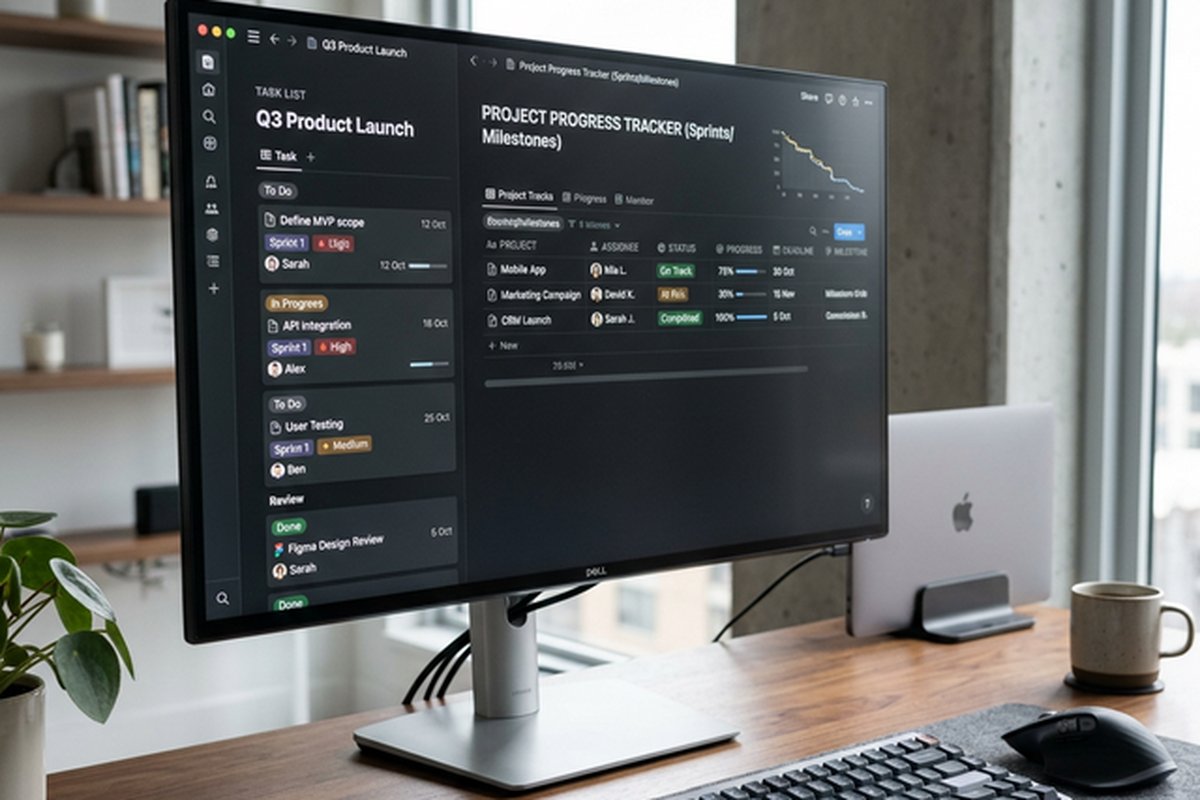
Table View displays tasks in a spreadsheet-like grid format where all selected properties appear as sortable,
filterable, resizable columns. This is the most information-dense view available and works exceptionally
well for detailed task review sessions where you need to see multiple data dimensions simultaneously, for
bulk status update meetings where many records need quick editing, for initial data entry when populating a
new project with its complete task breakdown, and for data quality audits when you need to identify missing
assignees, blank dates, or inconsistent status values across a large set of records. Project managers who
need to see assignees, dates, priorities, statuses, estimated hours, and tags simultaneously in a single
scannable display often use table view as their primary daily working interface.
Board View arranges task records into Kanban-style columns, typically grouped by the Status property but
configurable to group by any select property including priority, assignee, project, or custom categories.
Cards representing individual tasks can be dragged between columns to update their grouping property with a
single gesture, and each card shows a configurable subset of properties for at-a-glance information without
opening the full record. Board view is intuitive for visual workflow tracking and makes it immediately
obvious how many tasks sit at each process stage, where work is accumulating and creating bottlenecks, which
stages have excess capacity accepting more work, and whether the overall flow of work through your pipeline
is healthy or congested.
Calendar View plots tasks onto a monthly calendar grid based on their date properties. Tasks appear as
labeled blocks on their due dates, and you can drag tasks between dates to reschedule them directly from the
calendar interface without opening individual records. Calendar view is invaluable for deadline management
when you need to understand how many deliverables are due in a given week, for content scheduling when
publication dates determine your workflow rhythm, for release planning when coordinating multiple launches
across a quarter, and for identifying clustering problems where too many deadlines pile up on the same dates
and need to be redistributed for team sanity.
Timeline View provides Gantt-style horizontal bar visualization using start and end date properties. Tasks
appear as bars spanning their duration across a configurable time scale showing days, weeks, or months. You
can group timeline rows into lanes organized by assignee, project, priority, or other properties, creating a
visual representation of how work is distributed across your team or across your project portfolio over
time. Timeline view is the right choice for project phase planning, sprint scheduling, identifying
scheduling conflicts where the same person has overlapping commitments, and understanding the overall
temporal shape of a large initiative with many parallel workstreams.
Gallery View displays each record as a visual card arranged in a responsive grid layout, with a prominent
cover image or page content preview dominating each card. While less common for traditional task-list-style
project management, gallery view is excellent for creative teams tracking visual deliverables like design
concepts, marketing campaign assets, product photography, video content, or any work where seeing the visual
output is more important than reading status text and date information.
List View offers a minimal, clean, distraction-free vertical list of items with selected properties shown
inline as compact tags. It prioritizes scannability and simplicity over information density, making it
effective for quick daily task review, standup meeting reference, and rapid navigation to specific records
when you already know approximately what you are looking for.

The critically important architectural insight underlying all of these views is that every single one
references the exact same underlying database. A status change made by dragging a card between columns in
board view is immediately and automatically reflected in table view, calendar view, timeline view, gallery
view, list view, and every saved filtered view simultaneously. There is no synchronization delay, no manual
refresh required, and no possibility of different views showing contradictory information. This
single-source-of-truth architecture eliminates the data duplication nightmares, version conflicts, and
manual synchronization headaches that plague teams attempting to manage project information across multiple
disconnected spreadsheets, documents, or tools.
Filtered Views as Custom Dashboards
Beyond choosing a view type, Notion allows you to apply sophisticated combinations of filters, sorts,
grouping rules, and property visibility settings to create precisely focused perspectives on your data. This
filtering capability effectively gives you an unlimited number of custom dashboards from a single database,
each revealing exactly the specific slice of information a particular audience, context, or decision
requires.
Practical filtered view examples that teams commonly create include a My Tasks view configured as a board
filtered to show only tasks assigned to the current user and sorted by priority, giving each team member a
personalized task board without creating separate databases or duplicating any data. A This Week view
configured as a compact list filtered to show only tasks with due dates falling within the current calendar
week, helping the team focus exclusively on immediate priorities without being distracted or overwhelmed by
future work that is not yet actionable. An Overdue Tasks view configured as a table filtered to show only
tasks whose due dates have passed and whose status is not set to Complete, creating an automatic,
always-current urgency list for follow-up conversations, escalation decisions, and deadline renegotiations.
A Project Dashboard view configured as a board filtered by a specific project relation, showing only the
tasks associated with one particular initiative so project leads get a focused, clean view of their scope
without noise from unrelated workstreams. And a Sprint Board view configured as a board filtered by the
current sprint relation and grouped by status columns matching the team’s sprint workflow stages, providing
iteration-scoped visibility for agile or iterative teams.
These filtered views can be saved with descriptive names and accessed as persistent tabs within the database
page. Team members switch between views instantly with a single click, getting the exact perspective they
need for their current purpose without navigating away from the database, without requesting custom reports
from managers or administrators, and without maintaining personal spreadsheet copies of filtered data
subsets. This self-service approach to data visibility eliminates the need for separate status email
reports, personal task list spreadsheets maintained as shadow systems, and ad-hoc data exports that
inevitably become outdated the moment they are generated.
Relations and Rollups — Connecting Data Across Databases
One of Notion’s most architecturally powerful features for project management is the ability to create typed,
navigable relationships between databases using Relation and Rollup properties. These relationship
capabilities transform isolated task lists into an interconnected information system that generates
organizational intelligence automatically.
A Relation property creates a bidirectional link between entries in two different databases. For project
management, the most fundamental and commonly implemented relationship connects a Tasks database to a
Projects database. Each task record can be linked to one or more project records, and conversely, each
project record automatically displays a complete list of all tasks linked to it. This creates a navigable
two-way connection between the strategic level (projects with goals, owners, and deadlines) and the
execution level (individual tasks with assignees, statuses, and effort estimates). You can click from a task
to its parent project to understand the broader context, or click from a project to drill down into all of
its component tasks to understand execution status.
A Rollup property takes these relationships further by automatically aggregating data from related records
through the connection established by a relation property. Using the Tasks-to-Projects relationship as an
example, you could add rollup properties to the Projects database that continuously and automatically
calculate the total count of tasks currently linked to each project, the percentage of those tasks whose
status is currently set to Complete (effectively an auto-calculated project completion percentage), the
earliest start date and latest due date across all project tasks (defining the project’s actual date range),
the sum of estimated hours across all related task records (providing a total project effort forecast), and
the count of tasks whose status is currently set to Blocked (flagging projects with execution impediments).
These rollup calculations transform your Projects database from a static list of project names into a
self-updating portfolio dashboard that reflects real-time execution status without any manual calculation,
report generation, or data entry beyond the normal task management activities your team is already
performing.
Templates and Collaboration Features
Notion’s database template system automates the creation of standardized, fully structured database entries
with a single click. A task template can pre-populate the new record with a standardized description
structure including sections for acceptance criteria, testing notes, and deployment steps. It can include
default property values such as setting priority to Medium and status to Not Started. It can embed
checklists with standard quality assurance steps that apply to every task of that type. Project templates
can take this even further, scaffolding entire project workspace structures with predefined task databases,
document pages, meeting notes sections, and reference material repositories created and linked together in
seconds rather than the hours it would take to build manually.
Collaboration features in Notion enable team-wide participation in project tracking without friction.
Real-time co-editing allows multiple team members to work within the same database, the same page, and even
the same content blocks simultaneously with changes appearing instantly for all connected users. Inline
comments can be attached to specific text selections, content blocks, or database properties, creating
contextual discussions tied precisely to the content they reference rather than floating in disconnected
communication channels. Mentions using the at-sign notation notify specific team members and create
navigable links to people, pages, dates, and database records within any text content. Page-level
permissions support granular access control including full access, edit-only, comment-only, and view-only
roles, with the ability to grant external guest access to clients, contractors, and cross-functional
partners without requiring them to have full workspace membership.
Strengths and Honest Limitations
Notion’s key strengths for project management include the unification of documentation and task management
within a single platform, eliminating the context-switching and information fragmentation that occurs when
teams maintain separate tools for project tracking and knowledge management. The extreme customization
flexibility allows teams to build systems that reflect their actual processes rather than adapting their
processes to fit software constraints. The clean, minimalist interface design reduces visual clutter and
cognitive load. And the integrated knowledge base capabilities mean that project context, decisions,
research, and reference materials live alongside the tasks they inform.
Honest limitations include the absence of native workflow automation within the platform itself, requiring
external tools like Zapier or Make for automated triggers. The significant upfront investment required to
design an effective database structure means teams cannot simply sign up and start tracking tasks
immediately. Built-in reporting is limited to basic database views without visual chart widgets, burndown
displays, or velocity tracking. And performance can degrade noticeably with very large databases containing
many thousands of records with complex relations and rollups, requiring architectural optimization that
database-naive teams may struggle with.
For comparisons with more traditional project management approaches, our reviews of Trello’s
visual task tracking and Wrike’s
timeline planning offer contrasting perspectives on platforms that prioritize ready-made structure
over customization flexibility.
Features and pricing mentioned in this article are based on information available at the time of writing.
Please verify current details on the official Notion website.