OneDrive with Microsoft 365 – Cloud Storage for Windows Users
Microsoft OneDrive occupies a unique position in the cloud storage landscape because it is simultaneously a
standalone cloud storage service and the deeply integrated storage layer beneath Microsoft’s entire
productivity ecosystem, including Windows itself. For the hundreds of millions of people who use Windows
computers, Microsoft Office applications, and Microsoft 365 subscriptions, OneDrive is not merely one
storage option among many — it is the storage infrastructure that their existing tools are designed around,
built into, and optimized for. Understanding OneDrive requires examining it through this dual lens: as a
cloud storage service that competes on its own merits, and as the storage component of the broader Microsoft
365 experience that derives significant value from ecosystem integration.
OneDrive launched in 2007 under the name Windows Live SkyDrive, went through a rebranding to SkyDrive and
then to OneDrive following a trademark dispute, and has undergone continuous evolution from a basic file
storage locker into a sophisticated synchronization and collaboration platform. The service is available
across Windows, macOS, iOS, Android, and web browsers, though its deepest integration and strongest user
experience advantages are concentrated on Windows where OneDrive is built into the operating system at a
fundamental level.
Windows Integration and File System Experience
OneDrive’s integration with the Windows operating system is the most seamless cloud storage experience
available on any platform. OneDrive appears as a native location in Windows File Explorer, indistinguishable
from local folders in its appearance and behavior. Files stored in OneDrive can be accessed, renamed, moved,
copied, and organized through the same File Explorer interface used for local files, without requiring a
separate application window or any awareness that the files are cloud-stored rather than locally resident.
This integration extends to the Windows desktop, Start menu, and system tray where OneDrive status
indicators show synchronization progress and alert users to any issues requiring attention.
Files On-Demand technology allows OneDrive to display all cloud-stored files in the local file system without
downloading their content to the local disk. Each file shows a status icon indicating whether it is
available online only, available locally, or set to always remain available on the device. Online-only
files occupy minimal local disk space while remaining visible and searchable through File Explorer, and
they download automatically when opened. This capability is particularly valuable for laptop users with
limited solid-state drive capacity who maintain large cloud file libraries, enabling them to browse and
access their complete file collection without the storage capacity to keep everything downloaded
simultaneously.
Known Folder Move is a setup feature that redirects the contents of the Windows Desktop, Documents, and
Pictures folders to OneDrive, automatically backing up these commonly used locations to cloud storage
without requiring users to change their file-saving habits. Many users instinctively save files to the
Desktop or Documents folder, and Known Folder Move ensures those files are protected by cloud backup and
available across devices without requiring conscious decisions about which files to upload to cloud
storage. This automatic protection addresses the common scenario where important files exist only on a
single device’s local storage, vulnerable to hardware failure, theft, or accidental deletion.
Microsoft 365 Integration
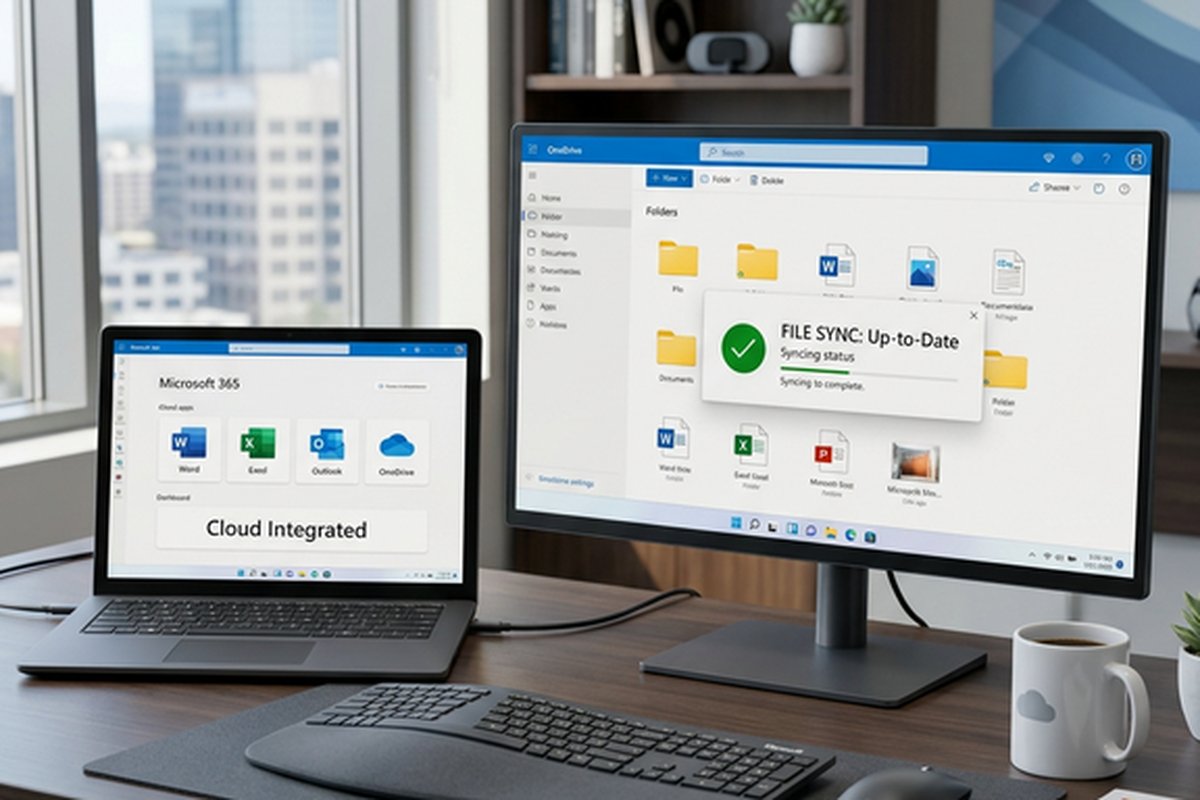
The integration between OneDrive and Microsoft 365 applications — Word, Excel, PowerPoint, Outlook, Teams,
and OneNote — creates a tightly connected productivity experience where storage, creation, and collaboration
function as a unified workflow rather than separate activities requiring manual coordination. Documents
saved to OneDrive from any Microsoft Office application are automatically available across all devices, and
the AutoSave capability continuously saves changes to cloud-stored documents without manual save actions,
ensuring that work is never lost to application crashes, power failures, or forgotten save operations.
Real-time co-authoring enables multiple users to simultaneously edit Word documents, Excel spreadsheets,
and PowerPoint presentations stored in OneDrive, with each person’s changes visible to all collaborators
as they type. The co-authoring experience works in both the desktop Office applications and the web-based
Office Online editors, though the desktop applications provide the richest editing experience with the full
feature set of the installed Office software. Presence indicators show which other users are currently
editing the document and which sections they are working in, providing awareness that helps collaborators
coordinate their editing activities and avoid conflicting changes to the same content sections.
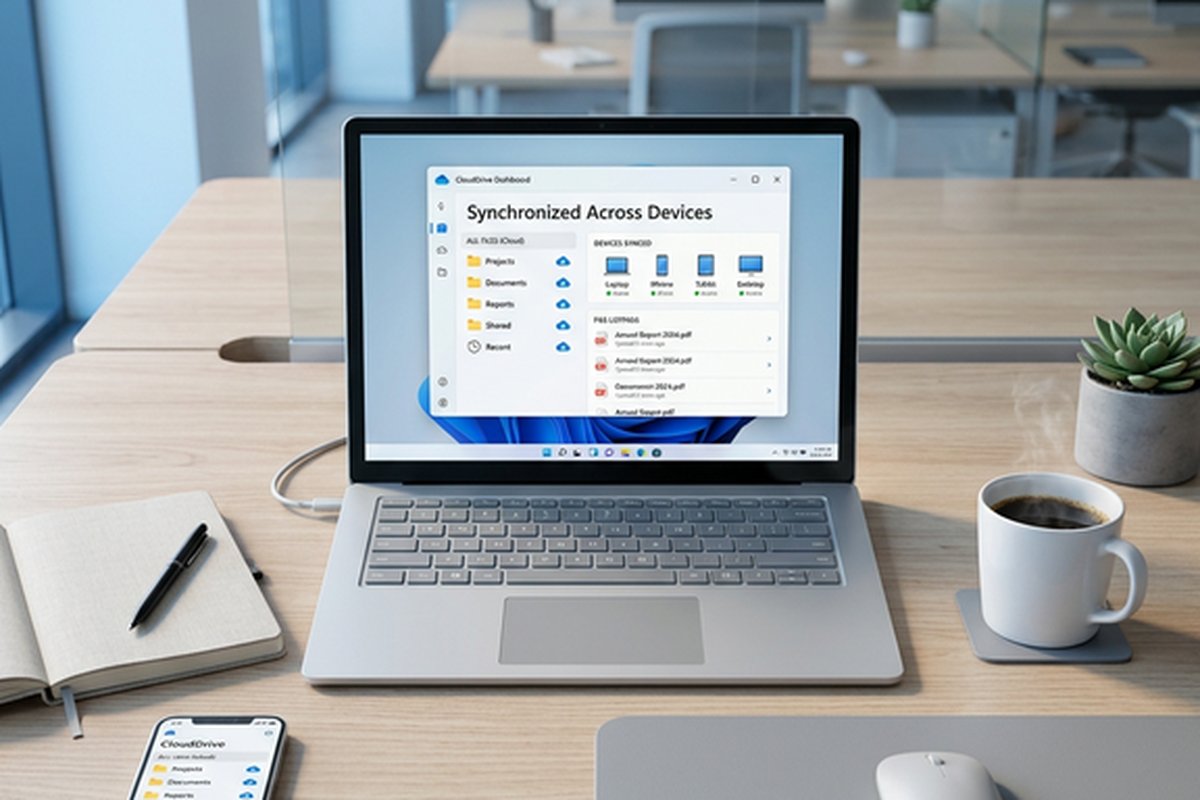
SharePoint integration extends OneDrive’s individual storage into organizational content management. In
Microsoft 365 business environments, OneDrive personal storage coexists with SharePoint team sites that
provide shared document libraries for departments, projects, and organizational units. The OneDrive sync
client can synchronize SharePoint document libraries to the local file system alongside personal OneDrive
content, creating a unified local file experience that includes both personal and organizational files.
This integration enables workflows where personal documents in OneDrive can be shared with specific
colleagues or moved to SharePoint team libraries when they become organizational assets rather than
individual files.
Microsoft Teams integration uses OneDrive and SharePoint as the underlying storage for files shared within
Teams channels and chats. Files shared in a Teams channel are automatically stored in the corresponding
SharePoint document library, while files shared in private chats are stored in the sender’s OneDrive. This
storage architecture means that files shared across communication contexts are organized and accessible
through both the Teams interface and the file system, avoiding the common problem of important documents
becoming trapped within communication threads where they are difficult to locate and manage over time.
Storage Plans and Capacity
The free OneDrive tier provides 5 gigabytes of storage, positioning it between Google Drive’s more generous
15-gigabyte free tier and Dropbox’s more restrictive 2-gigabyte basic plan. For light usage scenarios —
storing essential documents, sharing occasional files, and maintaining basic cloud backup for critical
files — the free tier provides sufficient capacity, but users with significant storage needs will quickly
encounter its limitations.
Microsoft 365 Personal subscriptions include 1 terabyte of OneDrive storage alongside the full Microsoft
Office application suite for desktop, tablet, and mobile devices. This bundling creates a compelling value
proposition for users who need both Office applications and cloud storage, as the combined cost is often
comparable to purchasing cloud storage alone from dedicated storage providers. Microsoft 365 Family extends
this to up to 6 users, with each user receiving their own 1 terabyte of OneDrive storage alongside shared
Office application access.
Business plans through Microsoft 365 Business Basic, Standard, and Premium tiers provide 1 terabyte per user
with additional organizational features including SharePoint, Teams, Exchange email, and administrative
management tools. The per-user storage can be expanded, and some enterprise plans offer unlimited storage
for organizations with more than five users, though the unlimited designation comes with practical fair-use
considerations and may require contacting Microsoft for provisioning beyond initial allocations.
Security and Compliance Features
OneDrive encrypts data in transit using TLS encryption and at rest using BitLocker encryption on Microsoft’s
storage infrastructure. Like Google Drive and Dropbox, OneDrive uses provider-managed encryption keys,
which means Microsoft has the technical capability to access stored data when required by legal process.
Personal Vault, a security feature available on all plans, provides an additional protected area within
OneDrive that requires identity verification through two-factor authentication, fingerprint, face
recognition, or PIN each time it is accessed. Personal Vault locks automatically after a period of
inactivity, providing an extra security layer for sensitive documents like identity documents, financial
records, and confidential personal files.
Ransomware detection and recovery is a security capability that monitors OneDrive files for patterns
consistent with ransomware encryption attacks. When suspicious mass-encryption activity is detected,
OneDrive alerts the user and provides guided recovery options that leverage version history to restore
files to their pre-attack state. This ransomware protection addresses one of the most practically
concerning security threats facing individual users and organizations, providing protection that extends
the value of OneDrive’s cloud backup function beyond simple data availability into active threat
response.
Compliance features on business plans include data loss prevention policies that detect and prevent sharing
of sensitive information, retention policies that preserve deleted files for specified periods, eDiscovery
capabilities for legal hold and search across organizational OneDrive content, and audit logging that
records file access and sharing activities for compliance monitoring. These capabilities address regulatory
requirements including GDPR, HIPAA, SOC compliance frameworks, and industry-specific data governance
standards.
Mobile Experience and Cross-Platform Access
OneDrive mobile applications for iOS and Android provide comprehensive access to stored files with browsing,
preview, sharing, and organizational capabilities optimized for mobile device interaction. The mobile
applications include a camera scanning feature that captures physical documents, whiteboards, and business
cards as digital files stored directly to OneDrive with automatic perspective correction, cropping, and
optional text recognition. Photo backup functionality can automatically upload device photos and videos
to OneDrive, providing continuous backup of mobile device photo libraries to cloud storage.
The macOS OneDrive experience provides file synchronization functionality comparable to the Windows
experience, though the integration depth is naturally less extensive on Apple’s platform where OneDrive
is a third-party application rather than an operating system component. Finder integration shows OneDrive
files and synchronization status, Files On-Demand works through the Finder interface, and Office for Mac
applications integrate with OneDrive for AutoSave and co-authoring functionality. For Mac users who work
in Microsoft 365 environments — common in organizations that standardize on Microsoft’s productivity
platform regardless of individual device platform preferences — OneDrive provides a workable cross-platform
experience that maintains access to organizational files and collaboration workflows.
Version History and File Recovery
OneDrive maintains version history for all file types, retaining previous versions for 30 days on personal
plans and longer retention periods on business plans. Users can view, download, and restore previous
versions of any file through the OneDrive web interface or right-click context menu in File Explorer. For
Microsoft Office documents, version history integrates with the Office application’s built-in version
comparison tools, allowing detailed examination of exactly what changed between versions and who made each
change. This version history provides a practical safety net for both accidental overwrites and intentional
edits that need to be reversed.
The Recycle Bin retains deleted files for 93 days on personal accounts and configurable periods on business
accounts, providing extended recovery opportunity for accidentally deleted content. Files in the Recycle
Bin do not count against the storage quota during the first 30 days of retention. Second-stage recycle bin
on business plans provides additional recovery capability for files that have been deleted from the
primary recycle bin, adding another layer of deletion protection for organizational content.
Strengths and Honest Limitations
OneDrive’s greatest strength is its ecosystem integration — the combination of Windows operating system
integration, Microsoft 365 application connectivity, and organizational infrastructure through SharePoint
and Teams creates a unified experience that no other cloud storage service can replicate within the
Microsoft ecosystem. The value proposition for Microsoft 365 subscribers is particularly strong because
1 terabyte of storage is included with the Office application subscription, making OneDrive effectively
free for users who would purchase Office regardless. The ransomware detection and Personal Vault security
features provide practical protective capabilities that distinguish OneDrive from several competitors.
The limitations center on ecosystem dependency and platform breadth. OneDrive’s deepest capabilities are
concentrated in Windows environments, and users on macOS or Linux experience a less integrated product.
The 5-gigabyte free tier is modest compared to Google Drive’s 15-gigabyte offering. Performance of the
synchronization engine, while improved substantially in recent years, still does not consistently match
Dropbox’s industry-leading sync speed and reliability, particularly for large-scale synchronization
operations involving thousands of files. For users evaluating OneDrive alongside the competitive
alternative from Google, our Google
Drive review provides comparative context, while our comprehensive
cloud storage comparison covers the full range of available platforms.
Features and pricing referenced in this article are based on information available at the time of writing
and are subject to change. Please verify current details on the official Microsoft OneDrive
website.