Photopea Browser Editor – Free Photoshop Alternative
Among the many applications that position themselves as Photoshop alternatives, Photopea occupies a uniquely
compelling position by delivering on a promise that most competitors either cannot make or fail to fulfill
convincingly: providing a genuinely Photoshop-compatible editing experience entirely within a web browser,
completely free of charge, with no account creation required, no software installation needed, and no
limitations on commercial use of images processed through the editor. In a software landscape where free
tools typically mean stripped-down functionality with constant upgrade nagging, and where browser-based
means simplified interfaces that sacrifice professional capabilities for accessibility, Photopea defies both
expectations simultaneously.
Created and maintained primarily by a single developer, Ivan Kutskir, Photopea launched in 2013 and has grown
into a web application used by millions of people worldwide who need professional-grade image editing
capabilities but cannot, or choose not to, purchase Adobe Photoshop’s subscription license. The tool runs
entirely in the browser using JavaScript and HTML5 Canvas, with all image processing happening locally on
the user’s machine rather than on remote servers. This means your files never leave your computer during
editing — an important privacy consideration for users working with confidential images, client materials,
or sensitive content.
This review examines how Photopea actually functions in daily professional use, evaluates its Photoshop
compatibility honestly, assesses its strengths and limitations against both free and paid alternatives, and
helps you determine whether Photopea genuinely meets your image editing requirements or whether the
trade-offs of a free browser-based tool are too significant for your particular workflow.
The Photoshop-Compatible Interface
Opening Photopea for the first time produces an immediate and startling sense of recognition for anyone who
has used Adobe Photoshop at any point in the past three decades. The interface layout is deliberately
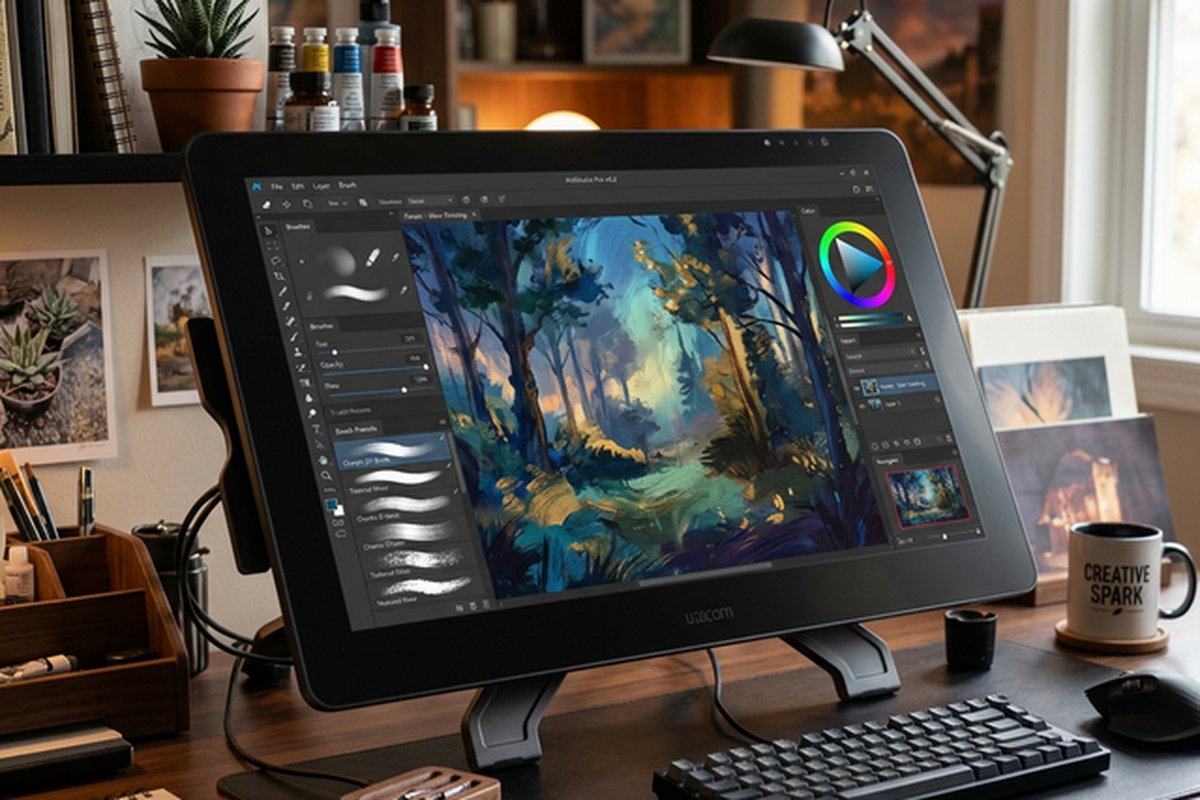
modeled after Photoshop’s classical workspace arrangement: a vertical tool panel on the left side containing
selection tools, brush tools, shape tools, text tools, gradient tools, and other primary editing
instruments; a horizontal options bar at the top displaying context-sensitive settings for the currently
selected tool; layer panel, color panel, history panel, and other information panels arranged on the right
side; and a central canvas workspace displaying the image being edited with zoom and pan controls.
This deliberate interface mimicry is not merely cosmetic — it represents a strategic design decision that
dramatically accelerates productive adoption for the enormous global population of users who have existing
Photoshop experience. If you know that the Clone Stamp tool in Photoshop lives in the left toolbar with a
stamp-shaped icon, you will find it in exactly the same position with exactly the same icon in Photopea. If
you are accustomed to pressing V for the Move tool, B for the Brush tool, M for the Marquee selection tool,
and L for the Lasso tool in Photoshop, those same keyboard shortcuts work identically in Photopea. Layer
blending modes, adjustment layers, filter menus, and image adjustment dialogs are organized and named
consistently with their Photoshop counterparts, creating a transfer of existing knowledge that eliminates
virtually all learning curve for experienced Photoshop users.
The toolbar provides access to a comprehensive set of editing instruments that covers the vast majority of
common image editing tasks. Selection tools include rectangular and elliptical marquee selections, lasso
freehand selection, polygonal lasso for straight-edged selections, magnetic lasso that snaps to detected
contrast edges, magic wand for color-based selection, and quick selection brush that intelligently expands
selections based on color and texture similarity. Drawing and painting tools include customizable brushes
with size, hardness, opacity, and flow controls, pencil for aliased hard-edge drawing, eraser with
configurable modes, gradient tool with multiple gradient types, paint bucket fill tool, and clone stamp for
duplicating image content from one area to another for retouching and repair work.
File Format Compatibility
Photopea’s file format support is exceptionally broad and includes several formats that most free image
editors cannot open or manipulate. The platform supports opening and editing PSD files (Adobe Photoshop), AI
files (Adobe Illustrator), XD files (Adobe XD), Sketch files, XCF files (GIMP), PDF documents, SVG vector
graphics, RAW camera files from various camera manufacturers, and all common raster formats including JPEG,
PNG, GIF, BMP, TIFF, and WebP. The ability to open and edit PSD files with layer structure, blending modes,
layer effects, smart objects, and adjustment layers preserved is the single most practically important
compatibility feature, because it means Photopea can participate in professional design workflows where PSD
is the standard interchange format between designers, clients, print vendors, and other production
stakeholders.
PSD compatibility goes beyond basic layer display to include preservation of layer groups, clipping masks,
vector masks, layer effects including drop shadows, inner shadows, outer glow, inner glow, bevel and emboss,
stroke, and color overlay, text layers with editable text properties, shape layers with vector path data,
and smart object containers. Complex PSD files from professional design workflows open in Photopea with
their layer structure intact and editable, allowing users to modify specific elements — changing text
content, adjusting colors, swapping images, or repositioning elements — without flattening the layered
composition or losing the structural organization that the original designer established.
The Sketch and XD file support is particularly notable because it extends Photopea’s utility beyond image
editing into the realm of design file review and modification for users who do not have access to the
original design applications. A developer who receives a Sketch file from a designer can open it in Photopea
to inspect layer properties, extract image assets, read text content, and measure element dimensions without
purchasing a Sketch license. This cross-application compatibility positions Photopea as a universal design
file viewer and editor that reduces the tool-specific silos that fragment many design and development
workflows.

Professional Editing Capabilities
Layer-based editing in Photopea supports the complete layer management paradigm that Photoshop users expect.
Layers can be created, duplicated, merged, grouped, locked, hidden, rearranged, and deleted through panel
interactions and keyboard shortcuts. Layer blending modes — Normal, Multiply, Screen, Overlay, Soft Light,
Hard Light, Color Dodge, Color Burn, Difference, Exclusion, Hue, Saturation, Color, and Luminosity among
others — control how each layer’s pixel content interacts visually with layers beneath it, enabling
sophisticated compositing effects, color grading techniques, and non-destructive editing approaches that
preserve original image data while applying complex visual modifications through layer stacking and blending
mode combinations.
Adjustment layers provide non-destructive color and tonal corrections that can be modified, disabled, or
removed at any time without permanently altering the underlying image data. Available adjustment types
include Brightness/Contrast, Levels with histogram-based tonal range controls, Curves with multi-point tonal
curve editing for precise highlight, midtone, and shadow control, Hue/Saturation with colorized mode for
tinting effects, Color Balance for adjusting color distribution across shadows, midtones, and highlights
independently, Channel Mixer for advanced cross-channel color manipulation, Photo Filter for applying color
warming and cooling effects, and Gradient Map for mapping tonal ranges to custom color gradients for
creative color grading effects.
The filter library covers a substantial range of image processing operations organized into categories
including blur filters (Gaussian, motion, radial, surface, lens blur), sharpen filters (unsharp mask, smart
sharpen), distort filters (liquify, spherize, twirl, wave, ripple), noise filters (add noise, reduce noise,
median), and stylize filters (emboss, find edges, wind, oil paint). The Liquify filter deserves particular
mention because it provides the same interactive, brush-based image distortion capability that Photoshop’s
Liquify tool offers — an essential capability for portrait retouching, creative distortion effects, and the
subtle image adjustments that commercial and editorial photo editing workflows frequently require.
Vector tools in Photopea enable creation and editing of vector shapes and paths with Bezier curve controls,
anchor point manipulation, and path boolean operations. The Pen tool creates vector paths with the same
click-and-drag anchor point and control handle manipulation that Photoshop and Illustrator users are
familiar with. Vector shapes maintain resolution independence and can be scaled without quality loss, making
them suitable for creating logos, icons, and scalable design elements within the raster editing environment.
Text layers use vector-based rendering that maintains crisp edges at any zoom level and supports
comprehensive typography controls including font selection, size, tracking, leading, alignment, and basic
paragraph formatting.
Performance, Privacy, and Practical Considerations
Performance depends primarily on the user’s local hardware and browser efficiency rather than server capacity
or internet connection speed, since all processing occurs client-side. Modern hardware with adequate RAM
handles typical editing tasks smoothly, though extremely large files — images exceeding fifty megapixels or
PSD files with hundreds of layers and multiple high-resolution smart objects — can push browser memory
limits further than equivalent operations on a native desktop application. Chrome and Edge typically provide
the best performance for Photopea due to their V8 JavaScript engine optimization, while Firefox and Safari
deliver acceptable performance with occasional differences in rendering speed for complex filter operations
on large canvases.
The privacy model is genuinely noteworthy and differentiates Photopea from many web applications. Because all
image processing happens locally in the browser using JavaScript, your image files are never uploaded to any
server. They remain on your machine throughout the editing session. The application code itself is loaded
from Photopea’s servers when you visit the website, but once the application loads, it operates entirely
client-side. This local processing model means Photopea can be used for editing confidential, sensitive, or
proprietary images without the data exposure concerns that server-side processing tools create. You can
verify this privacy claim by monitoring network traffic during an editing session — no image data is
transmitted to external servers during file operations.
The advertising-supported business model means that Photopea displays advertisements alongside the editing
workspace. For free users, these advertisements are the trade-off that enables the tool to remain free
without usage limitations, watermarks, or feature restrictions. A paid subscription is available that
removes advertisements and provides a distraction-free workspace for users who prefer a cleaner interface.
The advertising is not intrusive enough to significantly impair editing workflow, but users accustomed to
ad-free professional software environments may find it initially distracting until they habituate to its
presence.
Scripting capabilities in Photopea deserve mention because they enable automation of repetitive editing
tasks through JavaScript-based scripts that can manipulate layers, apply adjustments, resize images, export
in specific formats, and perform batch-like operations through programmatic control of the editing
environment. The scripting API mirrors aspects of Photoshop’s ExtendScript automation capabilities, which
means that scripts written for Photoshop can often be adapted for Photopea with relatively minor
modifications. This scripting capability distinguishes Photopea from simpler browser-based editors that
offer no automation functionality, providing a productivity advantage for users with recurring editing tasks
that can be partially or fully automated through scripted workflows. For users processing multiple images
with consistent editing requirements — applying watermarks, standardizing dimensions, adjusting color
profiles, or adding consistent visual treatments — the scripting capability saves significant time compared
to manual repetition of the same editing steps across each individual image file.
Practical Use Cases and Target Audience
Photopea serves several distinct user profiles exceptionally well based on its unique combination of
professional depth, zero cost, and browser-based accessibility. Designers and content creators who work
across multiple computers and operating systems — using a Mac at work, a Windows PC at home, and a Linux
machine in a specific context — gain consistent editing capabilities across all platforms without installing
software or managing license files on each machine. Freelancers who work from client offices where they
cannot install software on provided machines maintain full editing productivity through browser-based access
without requiring client IT department cooperation or software installation privileges.
Graphic design students and photography students in educational programs benefit enormously from Photopea’s
combination of professional-grade capabilities and zero financial barrier. Students can practice the same
editing techniques and workflows taught in Photoshop-based curricula using an interface that mirrors
Photoshop’s conventions closely enough to transfer skills bidirectionally. When students eventually
transition to professional environments that provide Photoshop through Creative Cloud licenses, the skills
and muscle memory developed in Photopea translate directly without relearning fundamental interface concepts
and tool behaviors.
Teams with occasional Photoshop file review needs — marketing teams receiving PSD mockups from external
design agencies, web development teams inspecting layer structures in design deliverables, or product
managers reviewing visual specifications — can open, inspect, and make minor modifications to PSD files
without purchasing Photoshop licenses for team members who only need occasional file access rather than
daily professional editing capability. This eliminates the common organizational challenge of justifying
per-seat Creative Cloud subscriptions for team members who interact with PSD files infrequently but cannot
currently view them without dedicated software.
Print-on-demand sellers, Etsy creators, and independent e-commerce operators who need capable photo editing
for product images, marketing graphics, and listing photography without the recurring cost of professional
editing software find Photopea provides all the essential capabilities — layer compositing, precise
selection tools, adjustment layers, text effects, and multi-format export — that their workflow requires.
The financial savings compound significantly for small businesses operating on thin margins where every
monthly software subscription directly impacts profitability.
Strengths and Honest Limitations
Photopea’s strengths are remarkable for a free browser-based tool. The Photoshop-compatible interface enables
instant productivity for experienced users without relearning fundamental editing conventions, and the
keyboard shortcuts match Photoshop’s default shortcut assignments so that muscle memory transfers seamlessly
between the two applications. PSD file
compatibility with faithful layer structure preservation maintains full participation in professional
workflows that use PSD as their standard interchange format. The breadth of editing tools covers the
overwhelming majority of common image editing tasks with implementations that match or closely approximate
Photoshop’s behavior. Zero-cost access with no registration requirement removes every financial and
administrative barrier to immediate productive use. Local client-side processing ensures complete privacy
for sensitive, confidential, or proprietary images. Cross-platform browser availability eliminates operating
system dependency and software installation requirements entirely.
Limitations are primarily performance-related and feature-depth related rather than fundamentally
architectural. Processing speed for complex filter operations on large images is slower than native desktop
applications that can leverage GPU acceleration and optimized native code execution. The absence of
GPU-accelerated processing means computationally intensive operations like large-radius Gaussian blurs,
complex liquify manipulations, and high-resolution RAW file development take noticeably longer than
equivalent operations in Photoshop. Some advanced Photoshop features including Content-Aware Fill with
advanced refinement options, neural filters, generative AI capabilities, and certain specialized compositing
capabilities are not replicated in Photopea. Batch processing and automation for high-volume production
workflows is limited compared to Photoshop’s Actions system and automated batch processing capabilities that
professional studios rely on for repetitive task automation.
For users exploring the broader landscape of free and accessible design tools, our review of Pixlr’s web-based
editing covers another browser-based option with a different interface philosophy, and our Affinity
Designer review examines a desktop application that offers a one-time purchase alternative to
Adobe’s subscription model for users willing to invest in a locally installed professional tool.
Features and pricing referenced in this article are based on information available at the time of writing
and are subject to change. Please verify current details on the official Photopea website.