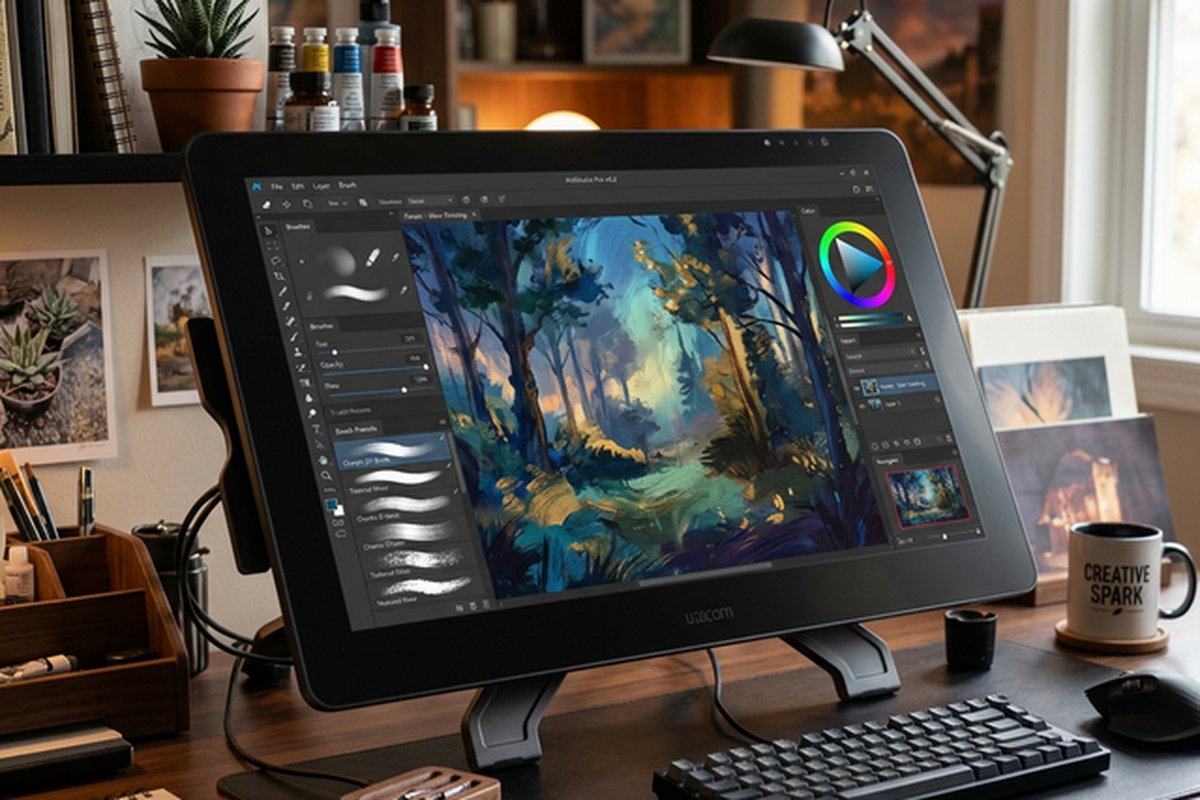
Vectr Simple Interface – Easy Vector Design Platform
Not every design task requires the full complexity of a professional vector graphics application with
advanced Bezier curve editing, multi-artboard document management, comprehensive Boolean pathfinder
operations, and extensive export configuration dialogs. Many common design needs — creating a simple logo
concept, building a basic social media graphic, designing a straightforward icon set, preparing a
presentation element, or constructing a basic infographic layout — require far less capability than
professional vector tools provide, and the overhead of learning and navigating those complex tools can
actually reduce productivity for users whose design needs are genuinely simple. Vectr occupies this
accessibility-focused position in the vector design landscape, providing a free, straightforward vector
editing environment that prioritizes ease of use and rapid productivity over feature depth and professional
specialization.
Available as both a web application running in any modern browser and as downloadable desktop applications
for Windows, macOS, Linux, and Chromebook, Vectr provides the core vector creation and editing tools that
most basic design tasks require without the interface complexity, steep learning curves, and
professional-tier pricing that characterize more capable alternatives. The platform targets students,
beginners, hobbyists, nonprofit organizations, small business owners, and anyone else who needs to create
vector graphics occasionally without justifying the investment — financial, temporal, or cognitive — that
professional vector design tools demand.
This review examines what Vectr provides, how its deliberately simplified approach works in practice, where
the platform genuinely serves its target audience well, and where its intentional simplicity creates
limitations that more demanding design tasks will encounter. The goal is an honest assessment that helps you
determine whether Vectr’s minimalist approach matches your specific design needs or whether your
requirements would be better served by a more capable tool even at the cost of greater complexity.
Interface and Core Tools
Vectr’s interface immediately communicates its design philosophy through visual simplicity. The workspace
presents a clean canvas area with a vertical toolbar on the left side containing the core set of drawing and
editing instruments, and a properties panel on the right side displaying settings for the currently selected
object. The toolbar contains noticeably fewer instruments than professional vector editors, and this is
entirely by design — the reduced tool count means new users can explore every available tool quickly,
understand what each one does, and begin productive work without the initial overwhelm of facing dozens of
unfamiliar icons in a crowded toolbar panel.
Shape tools create rectangles, rounded rectangles, circles, ellipses, lines, and freehand drawn paths. The
shapes are parameterized with adjustable properties — corner radii for rectangles, stroke width and color,
fill color, opacity, and dimensional controls — accessible through the right-side properties panel. Creating
shapes is a straightforward click-and-drag operation on the canvas, followed by property adjustments in the
panel. The interaction model is immediately intuitive for anyone who has used basic drawing tools in
presentation software, word processors, or other common applications that include simple shape drawing
capabilities.
The Pen tool provides basic path creation with point placement and curve handle manipulation for creating
custom shapes beyond the predefined geometric primitives. The pen tool implementation is simpler than what
professional vector editors offer — the curve handles and node editing options are more limited — but it
covers the fundamental capability of creating arbitrary vector shapes through point-by-point path
construction. For users creating custom logos, decorative elements, or unique shapes that cannot be
constructed from basic geometric primitives alone, the pen tool provides the necessary creative flexibility,
though complex illustrations with detailed curves and precise path control may push against its simplified
capabilities.
Text tools support adding text elements with font selection from the Google Fonts library, size adjustment,
color customization, alignment options, and basic formatting controls. The font selection provides access to
hundreds of diverse typefaces covering a wide range of stylistic categories from clean sans-serif fonts
suitable for modern business designs to decorative display fonts for creative and personal projects. Text
elements can be positioned freely on the canvas, layered with other design elements, and styled with the
same fill and stroke properties available to shape elements.
Real-Time Sharing and Collaboration
Vectr’s most distinctive feature relative to other free vector tools is its real-time collaboration
capability. Design files can be shared through a simple URL link, and multiple users can view and edit the
same design simultaneously with changes reflected in real time across all connected sessions. This
collaborative model — similar conceptually to Google Docs for documents or Figma for professional interface
design — is remarkable at the free tier because most competing vector design tools either do not offer
real-time collaboration at all or restrict it to premium paid subscription tiers.
The sharing workflow is intentionally frictionless. You create or open a design, click the share option, and
receive a URL that you can send to anyone. The recipient opens the URL in their browser and immediately sees
the design with full editing capability — no account creation required, no application installation needed,
and no file download or upload steps in the process. For educational contexts where instructors want
students to collaborate on design projects, for team brainstorming sessions where multiple people need to
contribute design ideas simultaneously, and for client review situations where gathering feedback on design
concepts should be as simple as clicking a link, this zero-friction sharing model provides genuine practical
value that removes barriers that other tools impose and enables receiving immediate collaborative input
and direction from clients or team members viewing remotely.
The collaboration model is particularly effective for remote client interactions where a designer can share
their Vectr workspace link during a video call and make real-time adjustments while the client watches and
provides immediate feedback on color choices, layout positioning, text sizing, and overall visual direction,
eliminating the traditional revision cycle of creating a draft, exporting, sharing, waiting for feedback,
interpreting written comments, and revising — a process that often requires multiple rounds before
convergence.
The collaboration works well for its intended use cases but has natural limitations. There is no version
history system that tracks and allows reverting to previous design states, no commenting system for leaving
feedback annotations on specific design elements, and no permission controls that differentiate between
view-only and edit access. The collaboration model is open and egalitarian — everyone with the link can edit
everything — which is appropriate for the informal, small-scale collaboration scenarios Vectr targets but
would be insufficient for professional team workflows requiring access control, approval processes, and
revision tracking capabilities.
Layer Management and Organization
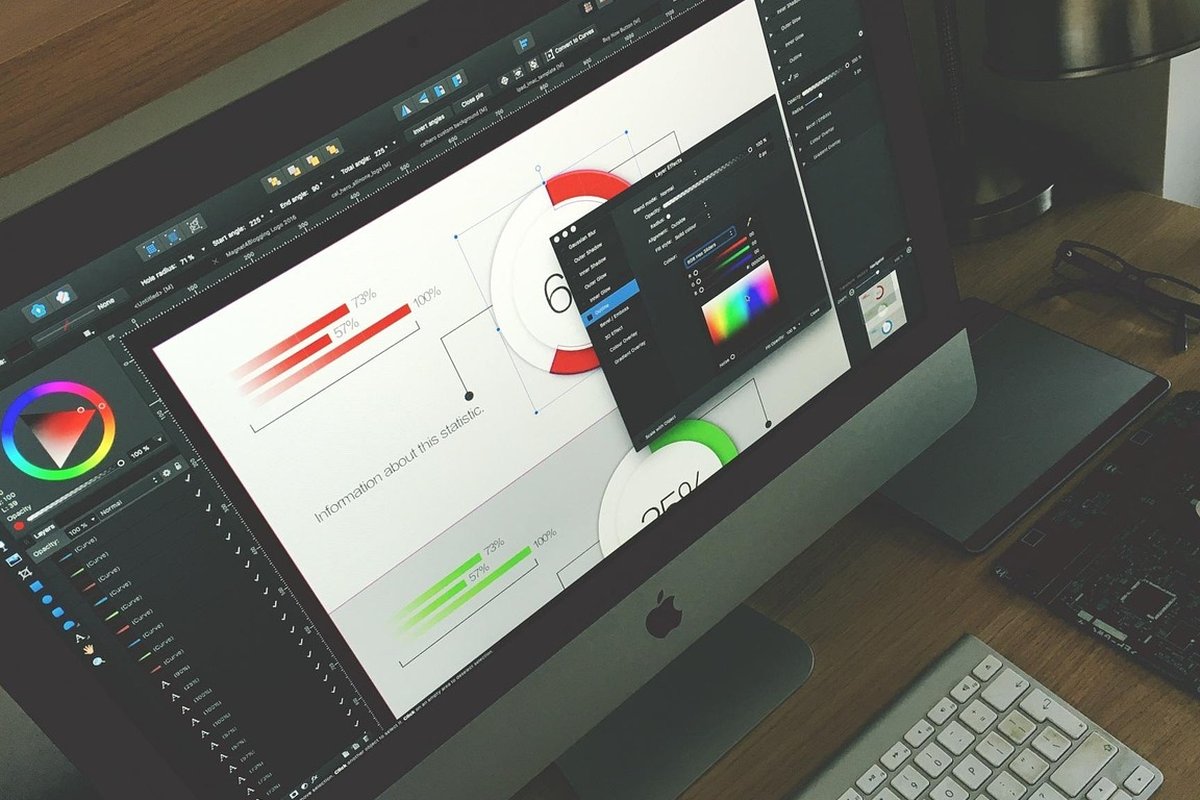
Vectr supports layers for organizing design elements into logical groups with independent visibility and
ordering controls. Each element on the canvas exists on a layer, and layers can be reordered to control
which elements appear in front of or behind other elements. The layer management is basic compared to
professional vector editors — features like layer locking, nested layer groups, blending modes, and
comprehensive layer effects are limited or absent — but the fundamental capability of organizing elements
into an ordered stack with controllable visibility is present and functions effectively for the complexity
level of designs that Vectr’s target audience typically creates.
Grouping allows combining multiple elements into a single selectable unit that can be moved, scaled, and
manipulated as a unified object while preserving the ability to enter the group and edit individual
component elements when needed. Groups can be nested — a group can contain other groups — providing a basic
hierarchical organization capability for designs with multiple logical components such as a logo design with
separate typographic and iconic elements, or a layout with distinct header, content, and footer sections.
Export Options and File Management
Export capabilities support PNG, JPEG, and SVG output formats with configurable resolution settings for
raster exports. The SVG export is particularly important because it preserves the vector nature of the
design in a web-standard format that maintains unlimited scalability, enabling Vectr-created designs to be
used at any size from small icon dimensions to large banner formats without quality degradation. PNG export
with transparency support enables creating design elements with transparent backgrounds suitable for
compositing into other design projects, presentations, and web layouts.
File management through Vectr’s cloud storage allows saving designs to an online account for access across
devices and sessions. Designs saved to the cloud are accessible from any browser or device where you log
into your Vectr account, providing basic cross-device workflow continuity. Local file export captures the
design in a format that can be reimported into Vectr or opened in other applications that support the
exported format. The file management is straightforward and functional without the organizational complexity
of folder hierarchies, tagging systems, or advanced search capabilities that larger design platforms provide
for managing extensive design libraries.
Educational Value and Learning Context
Vectr occupies a genuinely valuable position in the design education ecosystem as an introductory vector
design tool that teaches fundamental vector concepts without overwhelming beginners with professional
complexity. Students learning about vector graphics for the first time can understand the core concepts —
paths and anchor points, fill and stroke properties, object layering and ordering, basic vector
transformations, and the fundamental difference between vector and raster graphics — through Vectr’s
simplified interface before graduating to more capable tools as their skills and project requirements
evolve.
Educational tutorials built into the platform provide step-by-step guidance for common design tasks, creating
a structured learning pathway for beginners who may never have used any design tool before. The tutorials
cover fundamental operations like creating and styling shapes, working with text, using the pen tool for
custom paths, organizing elements with layers and groups, and exporting finished designs in appropriate
formats. This built-in educational content, combined with the zero-cost access and zero-installation
requirement, makes Vectr particularly well-suited for classroom integration in schools, universities, and
training programs that teach basic design skills as part of broader curricula that are not focused
exclusively on professional design education.
The progression path from Vectr to more capable tools is natural and well-supported by the vector design
concepts that Vectr teaches. Students and beginners who develop proficiency in Vectr understand
fundamental vector principles — path construction, fill and stroke properties, object transformations,
boolean operations, layering, and export format considerations — that transfer directly to any more advanced
vector tool they subsequently adopt. The skills are conceptually transferable even though the specific tool
interfaces differ, meaning that time invested in learning Vectr is not wasted when users eventually graduate
to more capable platforms like Gravit Designer, Figma, Affinity Designer, or Adobe Illustrator as their
design requirements grow beyond Vectr’s intentional simplicity boundaries.
Practical Design Examples
Understanding Vectr’s practical capabilities is clearest through specific design task examples that
illustrate both what the platform handles well and where its simplicity creates boundaries. A simple logo
design consisting of geometric shapes and text — a common requirement for startups, personal projects,
student organizations, and informal businesses — is well within Vectr’s capabilities. Creating circles,
rectangles, and custom shapes, positioning them precisely, applying brand colors, adding company name text
in a selected font, and exporting the finished logo in SVG for web use and PNG for social media profiles
represents a straightforward workflow that Vectr handles cleanly.
Social media graphics combining background colors or images with overlay text, simple iconographic elements,
and branded color schemes can be produced quickly in Vectr with results that look professional and
platform-appropriate. The workflow is straightforward: create a canvas at the target platform’s dimensions,
add background elements, position text with appropriate font choices and sizing, add any graphic elements,
and export in the required raster format. For users who create occasional social media graphics rather than
producing content at high volume, this workflow provides sufficient capability without the complexity
overhead of learning a more powerful tool.
Basic infographic elements — labeled diagrams, simple data visualizations with shapes representing
quantities, process flow illustrations with connected steps, and organizational charts — can be constructed
from Vectr’s shape, text, and grouping tools. The designs will be visually clean and functional, though they
will lack the sophisticated visual treatments, gradient effects, and detailed illustrative elements that
more capable vector tools enable. For presentations, internal communications, and educational materials
where clarity and information communication are more important than visual sophistication, Vectr-created
infographic elements serve their purpose effectively.
Who Should Consider Vectr
Vectr is most genuinely appropriate for several specific user profiles. Complete design beginners who want to
learn vector concepts without committing to professional software complexity or cost will find Vectr’s
simplified environment the least intimidating entry point available. Students in non-design programs who
need occasional design capabilities for class projects, presentations, and academic materials benefit from
the zero-cost access and minimal learning investment. Nonprofit organizations and community groups that need
occasional simple graphics but lack budget for design software or access to volunteer designers can produce
functional visual materials with minimal training investment.
Small business owners who create their own basic marketing graphics, social media posts, and business
materials benefit from Vectr’s accessibility when their design needs are simple and infrequent enough that
more capable tools would represent unjustified complexity and cost. Educators teaching basic digital
literacy or introductory design concepts find Vectr’s simplicity advantageous for classroom instruction
where the learning objective is understanding fundamental design concepts rather than mastering professional
design tools.
Users who should look beyond Vectr include anyone with regular design production requirements, designers
creating detailed illustrations or complex compositions, teams needing collaborative design workflows with
version control and approval processes, and professionals whose work will be evaluated against professional
quality standards that require the precision, effects, and visual sophistication that simplified tools
cannot deliver.
Strengths and Honest Limitations
Vectr’s strengths are centered on accessibility and simplicity. The completely free pricing with no feature
restrictions removes all financial barriers to vector design capability. The simple interface enables
genuinely rapid productivity for basic design tasks without the learning investment that more powerful tools
require. The real-time sharing capability through URL links enables frictionless collaboration that is
remarkable for a free tool. Cross-platform availability through browser and desktop applications ensures
access from any device regardless of operating system. The educational value for beginners provides a
gentle, non-intimidating introduction to vector design concepts that builds foundational understanding
transferable to any subsequent design tool.
Limitations are the direct consequence of the simplicity that defines the platform and should be understood
as intentional trade-offs rather than deficiencies. The vector editing tools lack the precision,
flexibility, and depth that complex design work requires — advanced path operations, gradient mesh,
comprehensive effects system, pattern creation, and sophisticated typography controls are absent or minimal.
Performance and stability with complex designs containing many elements can become inconsistent as the
application approaches its practical complexity ceiling. The absence of features like configurable grids,
smart guides, snap-to-object alignment, and numerical positioning precision limits the accuracy achievable
in designs requiring exact measurements and pixel-perfect alignment. Professional output requirements like
CMYK color management, bleed configuration, spot color support, and prepress preparation are entirely
outside Vectr’s scope and design intent. For users whose needs exceed Vectr’s capabilities, our reviews of
Gravit
Designer and Figma
cover more capable platforms with different balances between accessibility and professional depth.
Features and pricing referenced in this article are based on information available at the time of writing
and are subject to change. Please verify current details on the official Vectr website.