Trello Board Organization – Best Practices for Project Tracking
Trello has earned a reputation as one of the most approachable project management tools available. Its
drag-and-drop card system, built around Kanban-style boards, makes it immediately intuitive for individuals
and teams who want a visual way to track tasks without swimming through menus and configuration panels. But
that simplicity comes with a caveat: without thoughtful organization, a Trello board can quickly devolve
from a clear project tracker into a cluttered wall of cards that nobody wants to look at.
The difference between teams that thrive with Trello and those that abandon it within a few months usually
comes down to how well they structure their boards, lists, and cards from the beginning. This guide walks
through practical approaches to organizing Trello for project tracking, covering board architecture, list
design, card discipline, labeling systems, and the Power-Ups that fill functionality gaps when projects grow
more complex.
Understanding Trello’s Core Structure
Before diving into best practices, it helps to be clear about how Trello’s organizational hierarchy works,
because making the most of the platform depends on using each level appropriately.
A workspace is the top level of Trello’s structure. It acts as a container for boards and is
typically organized around a team, department, or company. Members of a workspace can access the boards
within it, and workspace-level settings control permissions, visibility, and billing.
A board represents a single project, workflow, or area of focus. It contains lists arranged
horizontally across the screen. Boards can be public (visible to anyone with the link), workspace-visible
(accessible to all workspace members), or private (restricted to specific members).
A list is a vertical column within a board. Lists typically represent stages of a workflow,
categories of work, or time-based groupings. Cards move between lists as work progresses.
A card is the fundamental unit of Trello. Each card represents a task, item, or piece of
work. Cards can hold descriptions, checklists, attachments, comments, due dates, labels, and more.
Understanding this hierarchy is essential because many organizational problems in Trello stem from misusing
one or more of these levels — putting too much on a single board, using lists inconsistently, or overloading
cards with unrelated information.
Designing Your Board Architecture
One of the first decisions you face when setting up Trello for a team is how many boards to create and what
scope each one should cover. There is no single correct answer, but a few guiding principles help prevent
the most common pitfalls.
One board per project or workflow is generally a sound starting point. If your marketing
team runs a content calendar, a social media schedule, and a campaign tracker, each of those workflows is
distinct enough to justify its own board. Cramming all three into a single board creates visual overload and
makes it difficult for team members to focus on the work relevant to them.
However, creating too many boards leads to the opposite problem: fragmentation. If work is scattered across
dozens of boards, team members spend more time navigating between them than actually managing tasks. A
practical guideline is that a board should contain enough context for someone to understand the full picture
of a specific workflow without needing to reference other boards frequently.
For organizations managing multiple projects simultaneously, consider a tiered approach. A high-level
overview board can track project names, statuses, and owners at a glance, while individual project boards
hold the detailed task breakdowns. This prevents any single board from becoming unmanageably large while
still providing centralized visibility.
Naming conventions for boards deserve more attention than they typically receive. A board named “Marketing”
tells you very little at a glance. A board named “Q1 2026 Content Calendar – Blog Posts” tells you exactly
what you are looking at, who it might concern, and when it is relevant. Including the team name, time frame,
or project phase in the board title helps workspace members locate the right board quickly, especially as
the number of boards grows.
Structuring Lists for Workflow Clarity
Lists are where Trello’s Kanban roots become most visible, and how you structure them determines whether your
board tells a clear story about work progress or leaves everyone guessing.
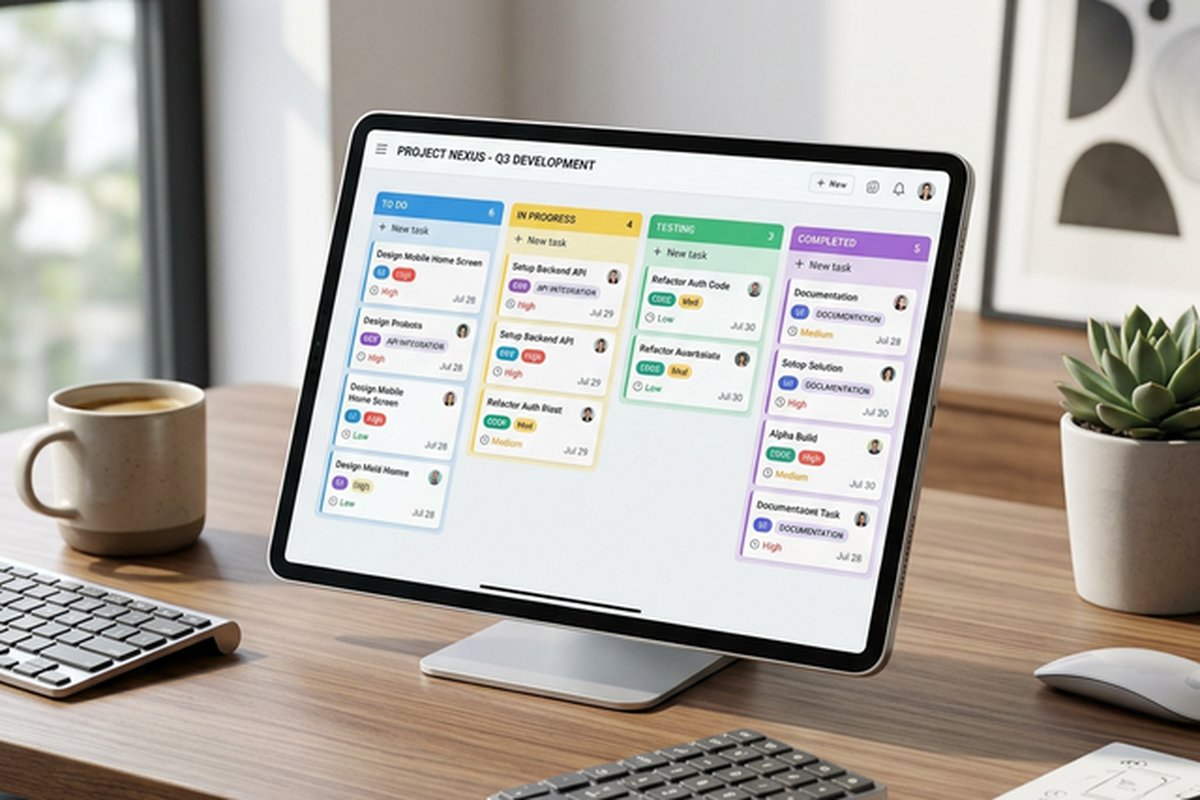
The most common list structure follows a left-to-right progression that mirrors workflow stages. A basic
setup might include:
- Backlog — Ideas, requests, and tasks that have been identified but not yet prioritized
for active work. - To Do — Tasks that have been prioritized and are ready to be started in the current
cycle. - In Progress — Work that is actively being done by a team member.
- Review — Completed work that requires review, approval, or quality checking before it
can be considered done. - Done — Tasks that are fully completed and approved.
This five-list structure works well for many teams, but rigidly adhering to it when your actual workflow
looks different is a mistake. If your team has a distinct “Waiting for External Input” stage where cards
regularly stall, add a list for it rather than leaving those cards ambiguously sitting in “In Progress.” If
your workflow does not involve a review step, omitting that list keeps the board honest rather than creating
an unused column.
Some teams benefit from adding utility lists that do not represent workflow stages but serve organizational
purposes. A “Resources” list at the far right of a board can hold reference cards containing project briefs,
style guides, meeting notes, or links to external documents. A “Blocked” list can visually isolate tasks
that cannot proceed until an external dependency is resolved, drawing attention to work that needs
intervention.
The key principle is that anyone looking at your board should be able to understand the current state of the
project at a glance. If that requires six lists, use six. If four accomplishes the same thing, do not add
more for the sake of appearing thorough.
Card Discipline — Keeping Tasks Actionable
Cards are where the real content lives, and maintaining discipline in how cards are created and maintained is
arguably the most important factor in long-term Trello board health.
One card should represent one actionable task. This might seem obvious, but in practice,
cards often become catch-all containers for vague objectives. “Work on marketing stuff” is not a card — it
is a list or even a board. “Write blog post about Q1 product updates” is a card. The test is simple: could a
single person pick up this card, understand what needs to be done, and eventually mark it complete? If the
answer is no, the card needs to be broken down further.
Card titles should be clear and consistent. Teams that establish a naming pattern find it much easier to scan
their boards. Some teams use a verb-first format (“Draft proposal for client X”), while others include
category prefixes (“[Blog] Write March newsletter”). Whatever convention you choose, consistency is what
makes it useful.
The card description field is underused by many teams, but it serves an important function. A well-written
description provides context that the title alone cannot convey — background information, acceptance
criteria, links to relevant resources, or notes about specific requirements. For tasks that will be picked
up by someone other than the card creator, descriptions eliminate the back-and-forth questions that slow
work down.
Checklists within cards are Trello’s version of subtasks. They work well for breaking a task
into sequential steps, tracking deliverables, or ensuring that standard processes are followed. A card for
“Publish case study” might include a checklist with items like “Write draft,” “Get approval from client,”
“Design layout,” “Upload to CMS,” and “Share on social channels.” Each checked item updates the card’s
progress indicator, providing at-a-glance visibility into how close the task is to completion.
However, checklists have a limitation: they are not first-class tasks. Checklist items cannot have their own
assignees, due dates, or labels in the free version of Trello (some Power-Ups add this capability). If a
checklist item is complex enough to need its own assignment and deadline, it probably deserves to be its own
card.
Using Labels and Filters Effectively
Labels are one of Trello’s simplest yet most powerful organizational features. Each label is a colored tag
that can be applied to cards, allowing you to create visual categories that cut across your list structure.
Common labeling strategies include:
- Priority-based labels: Red for urgent, orange for high priority, yellow for medium,
green for low. This creates an immediate visual hierarchy across the board. - Category-based labels: Different colors for different types of work (design,
development, content, admin). This helps when a single board contains diverse task types. - Owner-based labels: Colors representing different team members or departments. Useful
for boards where assignments need to be visible at the card level without opening each card. - Status-based labels: Colors indicating blockers, dependencies, or escalation needs.
This works well alongside the list-based status system for adding nuance.
The most important rule about labels is to define their meaning and communicate it to the team before
applying them. An unlabeled system is better than an inconsistent one. If different team members use the
same color to mean different things, labels become noise rather than signal.
Trello’s filtering capability becomes much more useful when labels are applied consistently. The filter menu
allows you to display only cards matching specific labels, members, or due dates, effectively creating
custom views of the same board. For a manager who wants to see only high-priority items, or a designer who
wants to view only design-related cards, filtering transforms a busy board into a focused work queue.
Due Dates, Calendar View, and Time Management
Trello’s built-in due date feature is straightforward but carries some nuances worth understanding. When you
set a due date on a card, the date badge changes color as the deadline approaches — yellow when due soon,
red when overdue. This color coding provides passive deadline awareness without requiring active monitoring.
Due dates can include specific times, which is useful for tasks with hard deadlines like meeting preparation
or submission cutoffs. You can also set start dates to indicate when work should begin, creating a date
range that shows the intended working period for a task.
The Calendar Power-Up (included in Trello’s free tier) converts due dates into a calendar view of the board,
plotting cards across a monthly layout. This view is particularly useful for teams managing content
schedules, event timelines, or any workflow where understanding the temporal distribution of work matters.
If several cards cluster around the same few days while the rest of the month looks empty, it is a clear
signal that workload redistribution might be needed.
One common mistake with due dates is treating them as aspirational rather than committal. If due dates are
routinely ignored or moved without consequence, the team loses trust in the timeline information on the
board. Establishing a culture where due dates are set thoughtfully and respected consistently is more
valuable than any organizational trick.
Power-Ups and Extending Trello’s Capabilities
Trello’s native feature set is deliberately lean, and the platform relies on Power-Ups (integrations and
add-ons) to extend its capabilities for teams that need more. Understanding which Power-Ups address common
project tracking gaps can help you build a Trello setup that punches above its weight class.
Butler is Trello’s built-in automation engine and does not count against your Power-Up
limit. Butler lets you create rules, scheduled commands, and card and board buttons that automate repetitive
actions. Examples include automatically moving cards to “Done” when all checklist items are checked,
assigning a team member when a specific label is applied, or sending weekly summary reports. Butler is
surprisingly capable and often eliminates the need for external automation tools like Zapier for basic
workflows.
Custom Fields allows you to add structured data to cards — dropdown menus, number fields,
checkboxes, dates, and text fields. This is valuable for tracking information that does not fit naturally
into Trello’s default card structure, such as estimated hours, cost, client name, or project phase.
Google Drive, Dropbox, and OneDrive integrations allow you to attach cloud-stored files
directly to cards, preview documents without leaving Trello, and create new documents from card details. For
teams that manage deliverables, these integrations keep file references co-located with the tasks they
relate to.
Slack integration enables notifications from Trello boards to appear in designated Slack
channels, and allows team members to create or modify Trello cards directly from Slack conversations. This
bridge reduces context switching for teams that use Slack as their primary communication channel.
Free Trello accounts can use unlimited Power-Ups as of the platform’s pricing update, though some Power-Ups
may have their own premium tiers. Teams on the free tier should explore which Power-Ups address their most
pressing workflow gaps before considering a paid Trello plan.
Managing Board Growth Over Time
Even well-organized Trello boards accumulate clutter over time. Completed cards pile up, outdated lists
linger, and what started as a clean workflow gradually becomes a historical archive disguised as an active
project tracker.
Regular board maintenance is essential. Set a recurring calendar reminder — monthly for active boards,
quarterly for slower-moving ones — to review and clean up. During maintenance, archive completed cards that
no longer need to be visible, delete lists that are no longer relevant to the current workflow, review and
update labels if their usage has drifted, and verify that Power-Ups and automations are still functioning as
intended.
Archiving is preferable to deletion in most cases. Archived cards and lists can be searched and restored if
needed, which preserves the historical record without cluttering the active view. Trello’s search function
indexes archived content, so you can still find past work when needed.
For long-running projects, consider creating periodic board snapshots. At the end of a quarter or major
project phase, duplicate the board and archive the copy as a record, then clean the active board for the
next phase. This approach gives you both a fresh working surface and a reliable project history.
Team Adoption and Collaboration Habits
The most meticulously organized Trello board is worthless if the team does not use it consistently. Adoption
challenges are rarely about the tool itself — they are about habits and expectations.
Start by establishing a small set of non-negotiable practices with your team. These might include: every new
task gets a Trello card (no managing work outside the board), cards are updated when their status changes
(no stale cards sitting in the wrong list), and due dates are set for all cards when the work is
prioritized. Keep the initial requirements minimal. Adding more rules later is easier than enforcing a long
list from day one.
Incorporate the Trello board into existing team routines. If you hold weekly standups, pull up the board and
walk through In Progress and Blocked lists together. If you do sprint planning, use the board to prioritize
the upcoming cycle’s work. When the board becomes the meeting agenda rather than a separate system to
update, adoption becomes natural.
Assign board ownership to one team member who is responsible for maintaining structure, enforcing
conventions, and onboarding new members. This does not need to be a large time commitment — a few minutes
per week of board gardening keeps things tidy and signals to the team that the board matters.
When Trello Works Well and When It Does Not
Trello excels for visual thinkers, teams with relatively straightforward workflows, and situations where ease
of adoption is more important than feature depth. Content workflows, sales pipelines, personal task
management, event planning, hiring pipelines, and simple software development tracking are all areas where
Trello performs well.
Trello starts to strain when projects require complex dependencies between tasks, when you need native Gantt
charting with resource leveling, when reporting and analytics need to be sophisticated, or when the volume
of concurrent work overwhelms the Kanban view. In these scenarios, teams often find themselves either adding
numerous Power-Ups to compensate for missing features or eventually migrating to a more full-featured
platform like Asana or
Monday.com.
Recognizing this boundary is important: Trello is not trying to compete with enterprise project management
software, and expecting it to behave like one leads to frustration. Used within its strengths, Trello
remains one of the most efficient and enjoyable ways to organize team work. The key is structuring your
boards thoughtfully from the start and maintaining that structure as your projects evolve.
For teams evaluating other visual project tracking options, our review of ClickUp’s
all-in-one approach and Airtable’s
database-based tracking offer alternative perspectives
worth considering.
Features and pricing mentioned in this article reflect information available at the time of writing and
may change. Please verify current details on the official Trello website.